Notiz
Lab-7:Recovering Corrupted Disk - MBR Case
Scenario:
The Kids Greenland Garden (KGG) is a place where parents take their kids to play in its wonderful green gardens. There were a lot of complaints about Mr.X, the KGG gardener. An official dispute was filed by one of the parents (Sally) when she was positive that something weird was going on by Mr.X and it was time to put an end to it. The police were informed, and a teamof first responders was sent to the garden. The day before Sally filed an official dispute, she confronted Mr.X about his weird activity, and that he is doing something wrong. Because of that, what Mr.X did, was ruin his disk drives so he can cover whatever data he is hiding on his disks.
In this case, you are required to understand the disk partition schema and recover if any of the disks on Mr.X’s machine were corrupted.
Tasks:
Task 1: Recovering a Corrupted Disk
Mr.X corrupted his disk before you managed to issue a warrant and acquire his media for investigation. You need to restore the disk to a fully working state to proceed with your investigation.
You can find the forensic image at C:\DFP\Labs\Module04\Lab7\Lab7.001 .
Look at the end of the first sector, which is the sector of the MBR. We are supposed to find an end of sector marker or sector signature which should hold some specific bytes. Are those specific bytes there?
Solution:
Let’s first explore the sample with our common tool “WinHex”. As the question already told us that the sector is MBR and need to know that the MBR sector always ends with the 55 AA hex string.
Let’s first view the sample using FTK-Imager to view the partition of the image:
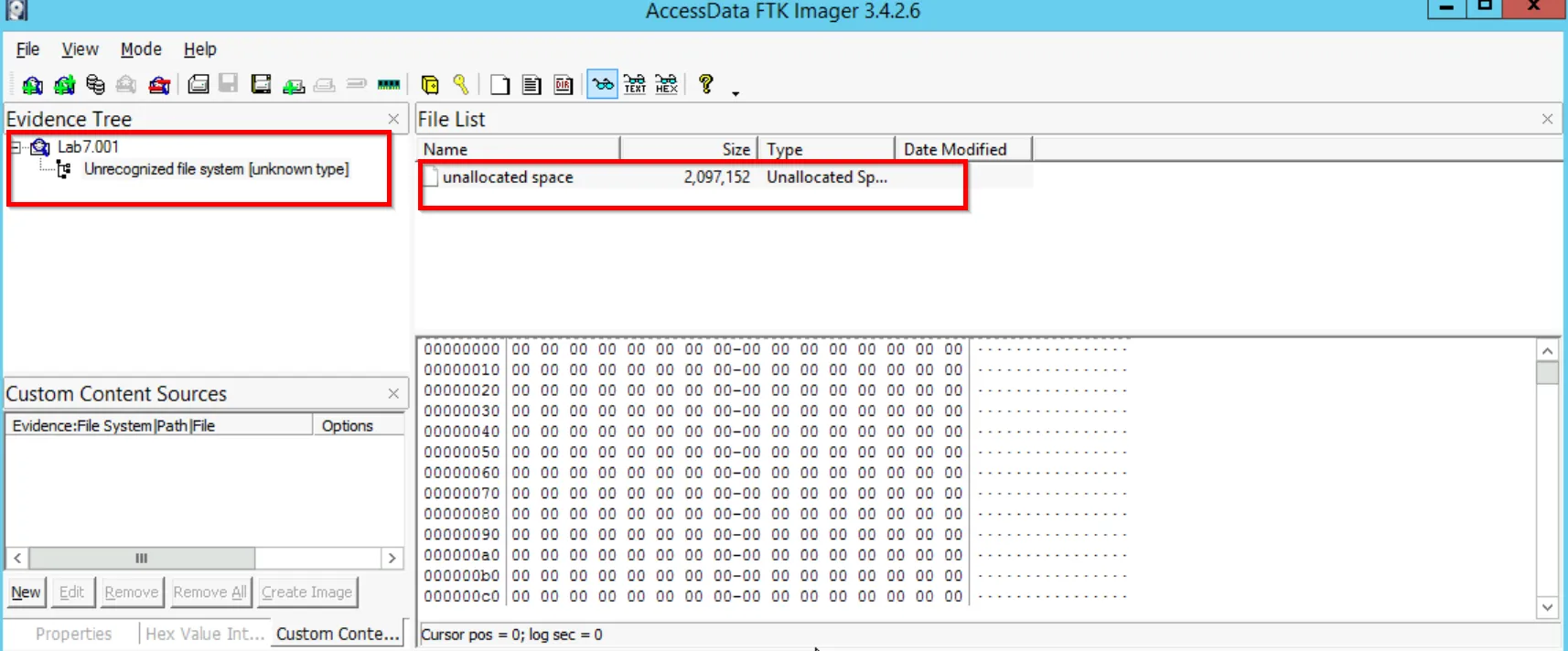
It means something is wrong with the sample image, let’s verify using the WinHex:
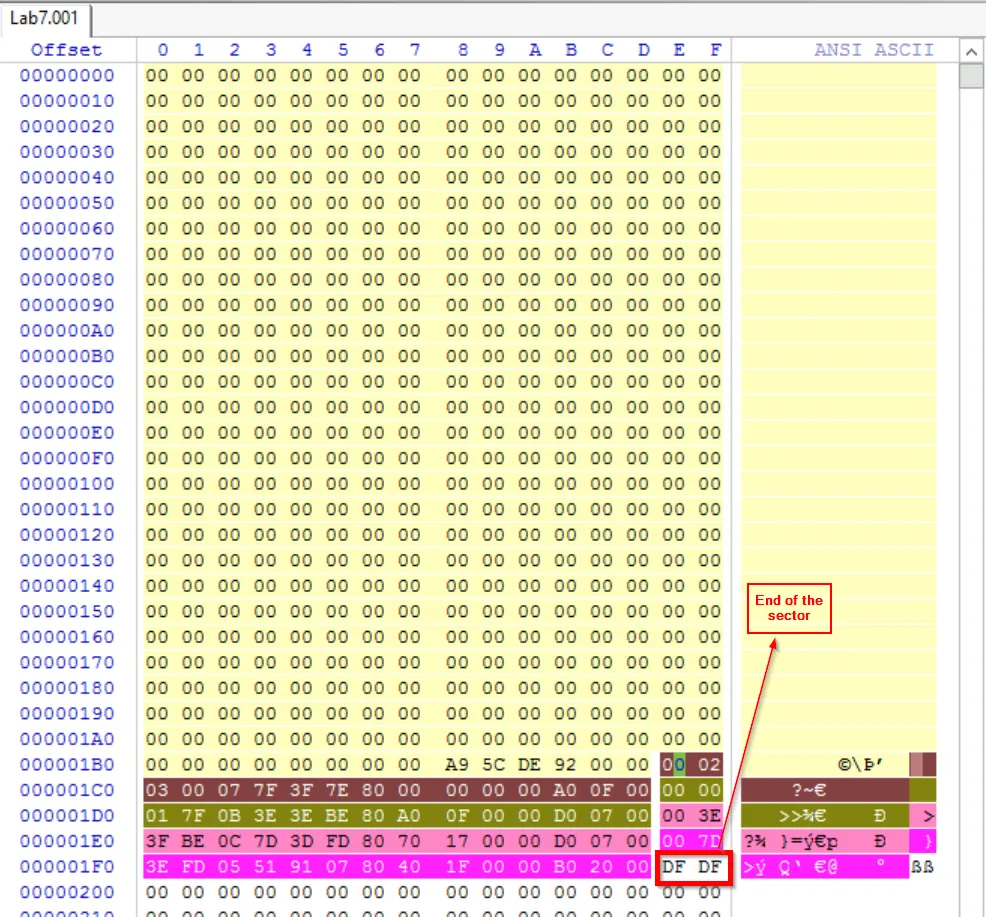
Based on the MBR sector , it seems the end of the sector contain the invalid hex data as the end of the MBR ends with 55 AA. So while using FTK-Imager it is only able to show use the raw physical disk space. Hence, we need to edit the end of the sector to explore the proper MBR sector.
We can take the help of Hex Workshop tool to achieve this:
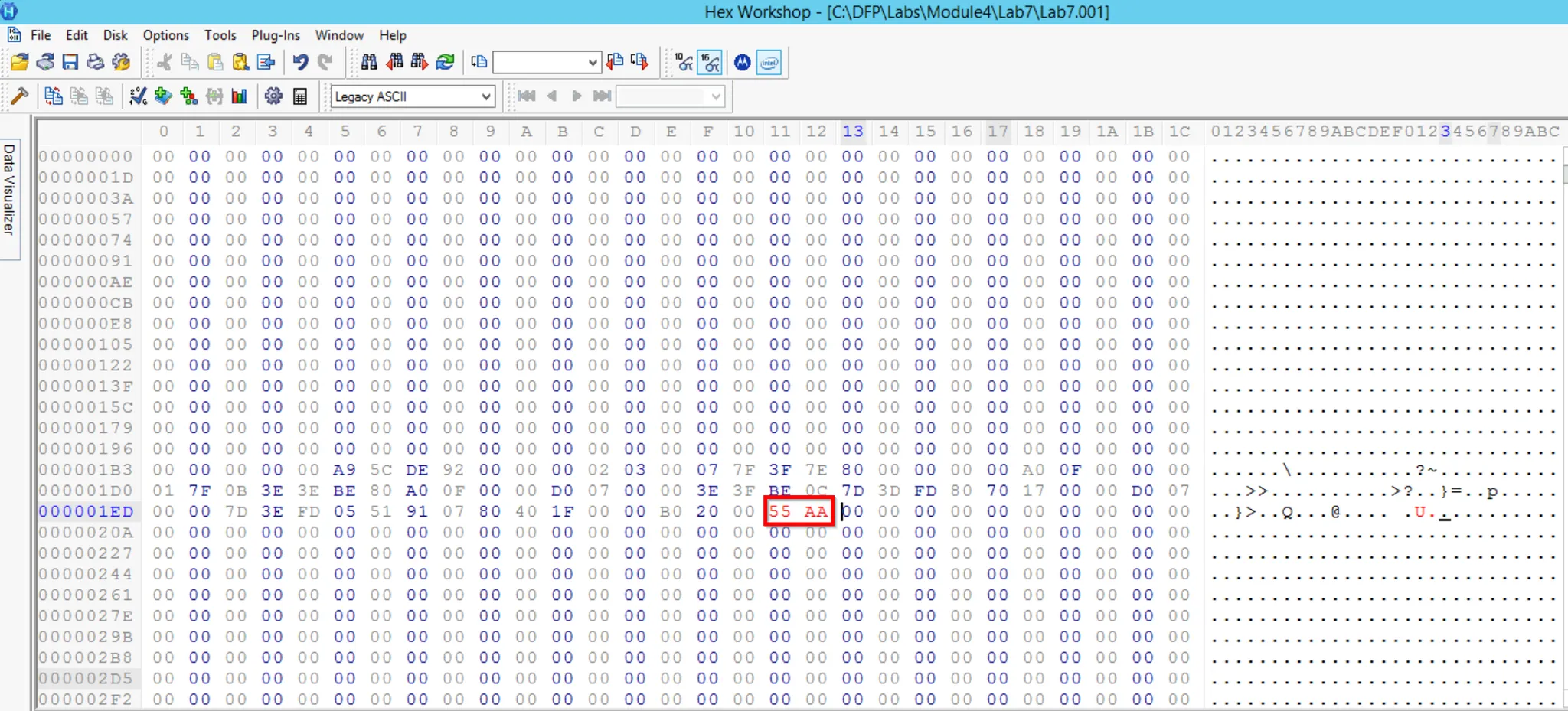
Lets just save this changed sample and explore this changed sample. [Note: We never want to alter the original evidence]

We need to know that, if the end of the sector is valid, and no other changes required; then we can view this image with all the partitions within the FTK-Imager.
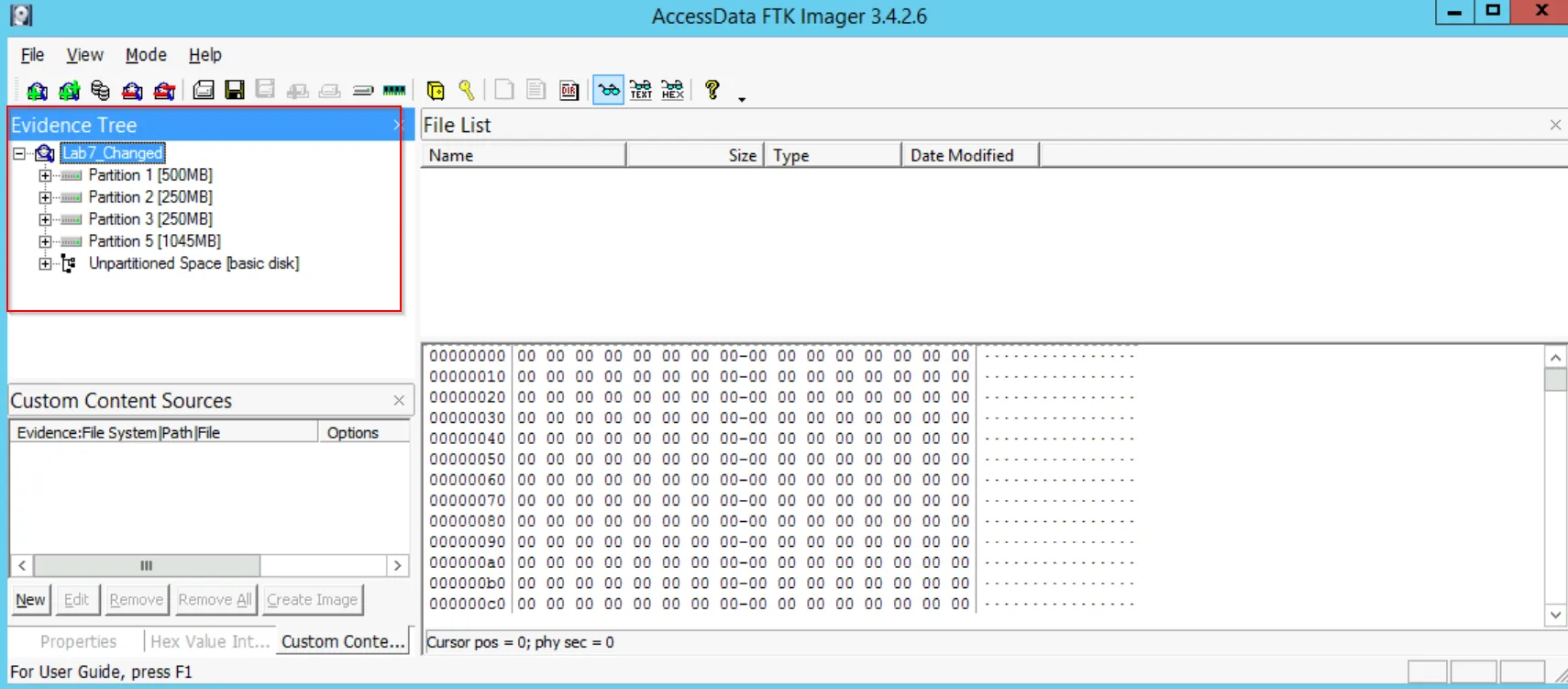
It seems our assumptions is true. The FTK-Imager shows all the required content with their partitions.
Now we can move forward and explore the partition of the disk.
Task 2: Analyzing The MBR
Now after you managed to recover the acquired disk, you need to analyze the Master Boot Record (MBR) for the disk, and answer the following:
- How many partitions are in this disk?
- Which partition if any, is marked as bootable?
- For each partition found, identify the following:
- Starting Sector (or First LBA)
- No. of sectors in partition
- Partition Size
- Partition Type
A variety of forensic tools in c:\DFP\Tools\Disks will help you answer the questions above.\
Solutions:
As we have gain the disk with proper format so that we can analyze using WinHex tool. Let’s open that changed sample and answer all the question mentioned above:
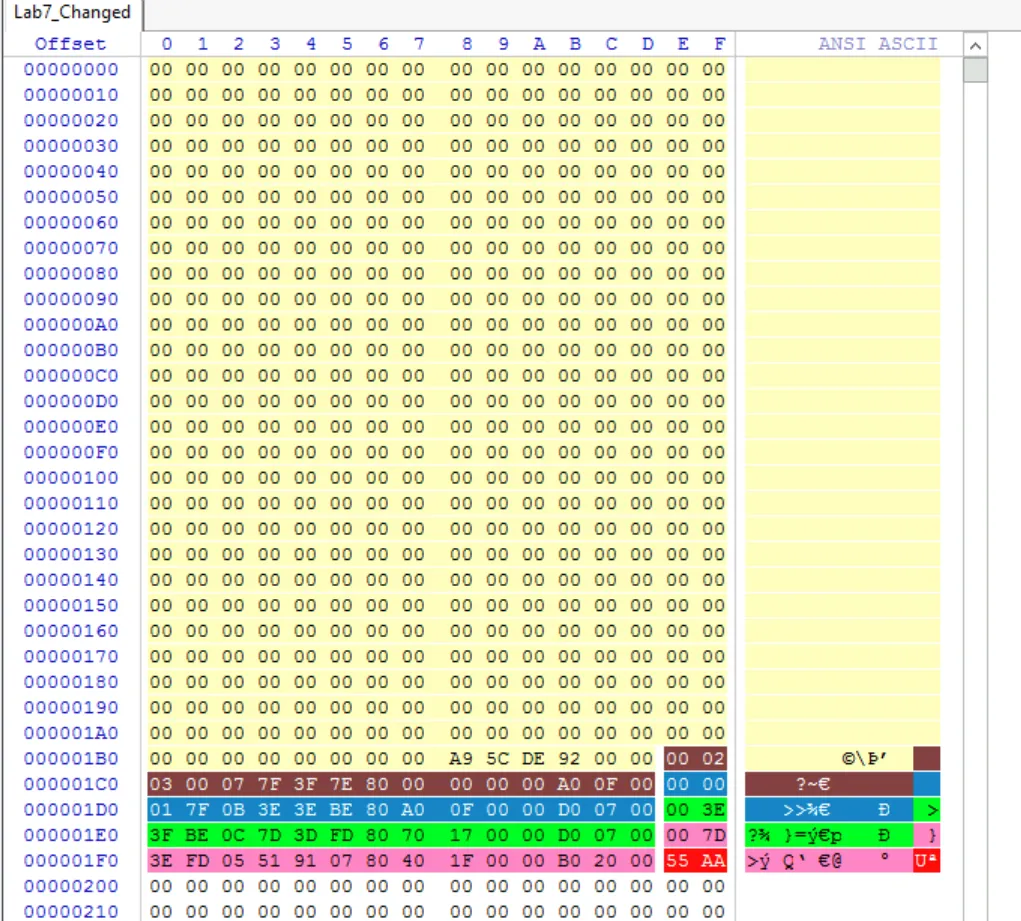
-
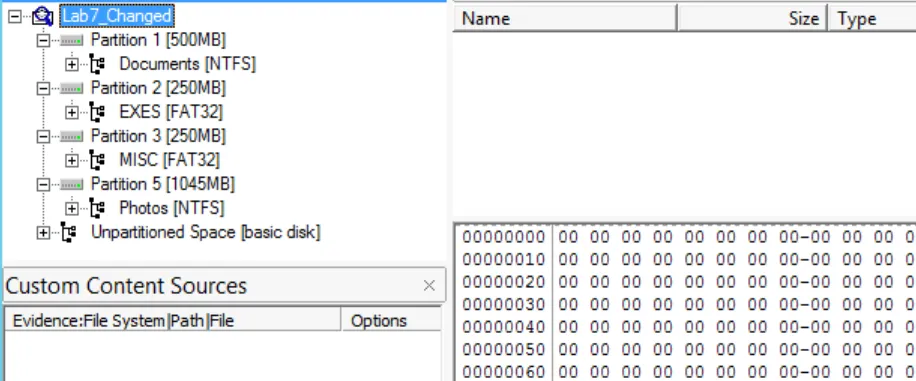
How many partitions are in this disk? From the WinHex we can view that there are 4 partitions. Further more, after viewing using FTK-Imager it confirms 4 partitions with partition name as:
→ Partition 1
→ Partition 2
→ Partition 3
→ Partition 5
-
Which partition if any, is marked as bootable?
Lets explore the hex-data of all the partition values. And their first value denote whether the partition is bootable or not:
Partition 1:
00020300077F3F7E8000000000A00F00 → Non-Bootable (00)
Partition 2:
0000017F0B3E3EBE80A00F0000D00700 → Non-Bootable (00)
Partition 3:
003E3FBE0C7D3DFD8070170000D00700 → Non-Bootable (00)
Partition 5:
007D3EFD0551910780401F0000B02000 → Non-Bootable (00)
-
For each partition found, identify the following:
- Starting Sector (or First LBA)
- No. of sectors in partition
- Partition Size
- Partition Type
Solution:
Partition 1:
00020300077F3F7E8000000000A00F00
Partition type (1-byte) → 07 = NTFS
Starting Sector or First LBA (4-byte) → 80000000 → 00000080 (Little-endian) = 128
[No. of Partition (4-byte) → 00A00F00 → 000FA000 = 1,024,000 x 512 bytes = 524,288,000 bytes = 500 MB]
Partition 2:
0000017F0B3E3EBE80A00F0000D00700
Partition type (1-byte) → 0B = W95 FAT32
Starting Sector or First LBA (4-byte) →80A00F00 = 000FA080 (little endian) = 1,024,128
No of Sector (4-bytes) → 00D00700 → 0007D000 (little endian) → 512000 x 512 bytes = 262,144,000 = 250MB
Partition 3:
[003E3FBE0C7D3DFD8070170000D00700]
Partition type (1-byte) → OC = W95 FAT32
Starting Sector or First LBA (4-byte) → 80701700 = 00177080 (little endian) = 1,536,128
No of Sector (4-bytes) → 00D00700 = 0007D000 (little endian) = 512,000 x 512 bytes = 262,144,000 → 250 MB
Partition 4 (Name is Partition 5):
[007D3EFD0551910780401F0000B02000]
Partition type (1-byte) → 05 = Extended; which means we have extended type partition for NTFS file system.
Starting Sector or First LBA (4-byte) →80401F00 = 001F4080 (Little Endian) = 2,048,128
No of sector (4-bytes) → 00B02000 → 0020B000 (little endian) = 2,142,208 x 512 bytes = 1,096,810,496 bytes = 1046 MB
Also we can further investigate using FTK-Imager tool as:
Open the image evidence » Click View » Properties
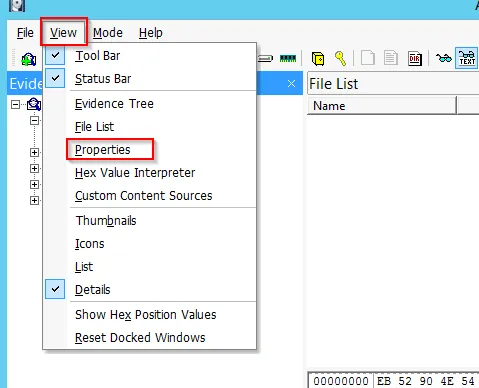
Now we get the actual info as:
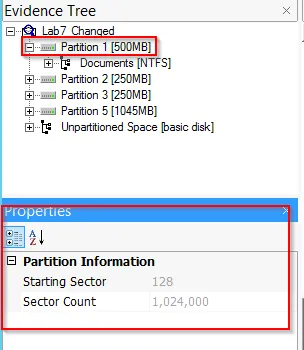
Starting Sector → 128
Sector Count → 1024000 x 512 bytes = 524,288,000 bytes ⇒ 500 MB (Partition Size)
Partition 2:
[0000017F0B3E3EBE80A00F0000D00700]
Partition type (1-byte) → OB = W95 FAT32
We can find further values similarly using FTK-Imager:
Starting Sector = 1024128
Sector Count = 512000 x 512 bytes →262,144,000 bytes = 250 MB (Partition size)
Partition 3:
[003E3FBE0C7D3DFD8070170000D00700]
Partition type (1-byte) = OC = W95 FAT32 (LBA)
Starting Sector = 1536128
Sector count = 512000 x 512 bytes ⇒ 262,144,000 bytes = 250 MB (Partition Size)
Partition 5:
[007D3EFD0551910780401F0000B02000]
Partition type (1-byte) = 05 → Extended it means, we have an extended partition type holding a NTFS file system.
Starting Sector = 2048256
Sector count = 2140160 x 512 bytes = 1,095,761,920 bytes = 1045 MB (Partition Size)
| Partition | Bootable | Partition Type | Starting Sector | Sector Count | Size |
|---|---|---|---|---|---|
| Partition 1 | No (0x00) | NTFS | 128 | 102400 | 500MB |
| Partition 2 | No (0x00) | FAT 32 | 1024128 | 512000 | 250MB |
| Partition 3 | No (0x00) | FAT 32 | 1536128 | 512000 | 250MB |
| Partition 5 | No (0x00) | NTFS | 2048256 | 2140160 | 1045MB |