Notiz
Lab 6: Analyzing Microsoft Office Documents

Scenario
Peter, your friend, is an assistant professor who teaches at a local university in your town. One day he came to you with a big problem; it seems that someone has been stealing the exams questions from his laptop.
Even though he isn’t a computer professional, he knows the basic security practices. He never lets strangers use his laptop, always locks his machine when he leaves his desk, and he never downloads applications and .exe files from untrusted sources.
Peter, however, doesn’t know that .exe files aren’t the only source of threat. He usually accepts students’ homework via e-mail.
Naturally, he downloads the homework files on his machine so he can evaluate them. After you told Peter that malicious content could hide in a Microsoft Office file, he remembered that the incidents started after he downloaded an excel homework file on his machine from two of his students.
Peter gave you the file and asked you to prove that the file is malicious so that he can take the appropriate procedures against the suspected students.
Tasks
Task1: Extracting metadata
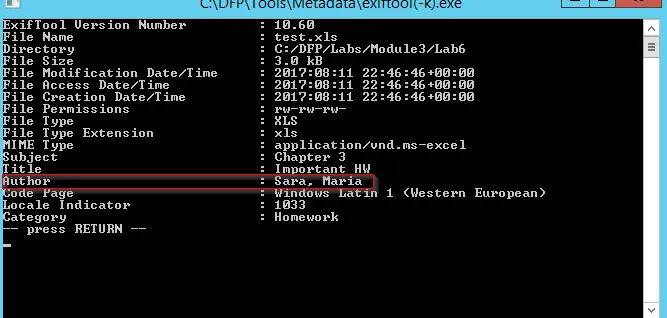
You can find the under investigation Office document at C:\DFP\Labs\Module3\Lab6\test.xls. Use Exiftool to examine the excel file metadata and extract the author.
Solution:
Using exiftool(-k).exe tool:
Task 2: Scanning for Malicious content
Use Officemalscanner to scan the excel file for macro scripts, known exploits, encrypted content and PE headers.
Write down the index where the Malicious object was found.
Solution:
By simply executing the tool OfficeMalScanner we can’t get the ouput. We further need to explore the command using CMD prompt.
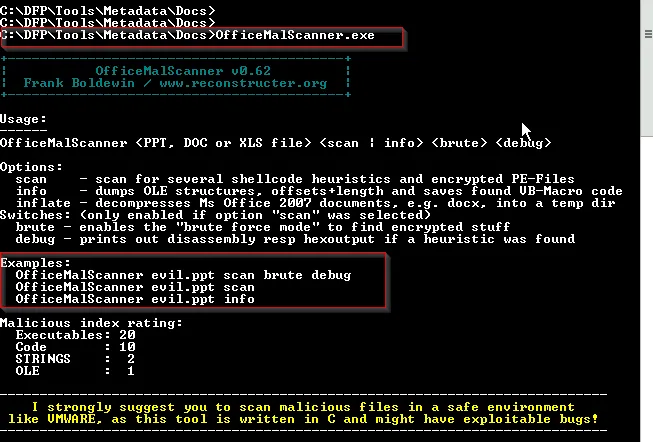
Using the command as:
OfficeMalScanner.exe <file_name> scan brute debug
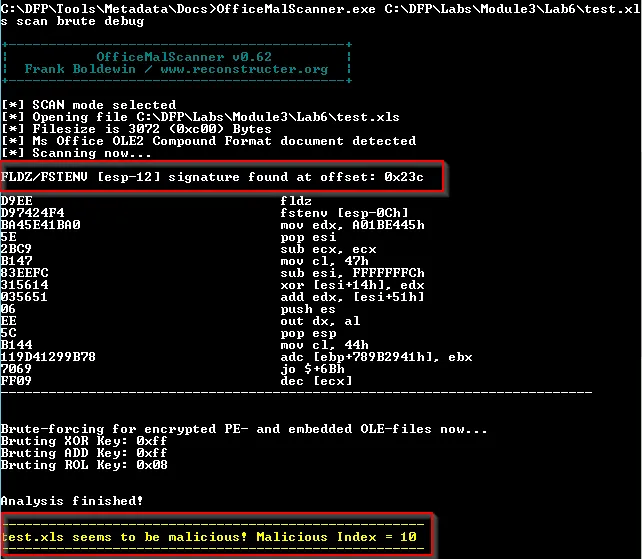
We need to understand that: This tool assigns a malicious index to each file. This index indicates what the possible content is. Anything above 10 is considered dangerous. If it’s between 10 and 20, it means code signature has been found inside. Above 20, means a whole executable is probably embedded within it.
Task 3: Examining the malicious embedded code
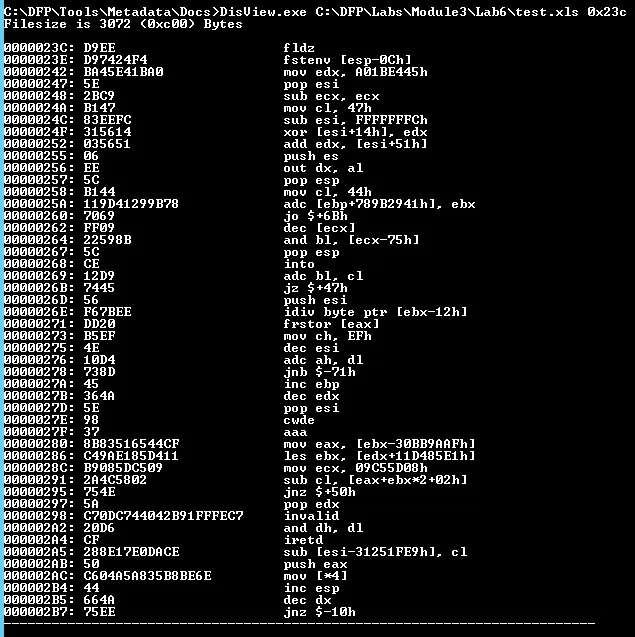
Use Disview to display the malicious object’s assembly code. Then, extract it using MalHost-Setup to an exe file. Scan the file with Antivirus to check the malware type.
Solution:
We first need to understand the service provided by Disview.exe tool:
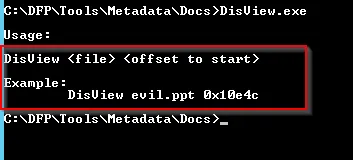
We know the offset start value as 0x23c. We get the code as:
Further exploring MalHost-Setup.exe tool:
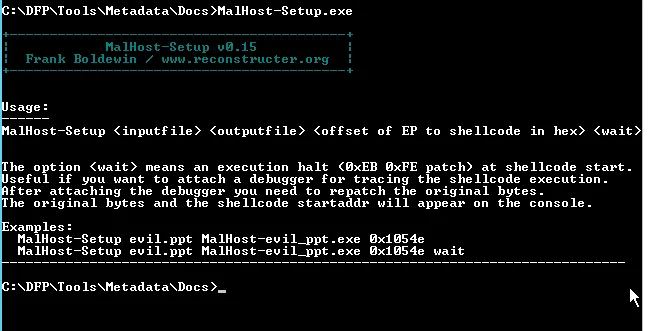
Using the code according to tool as:
MalHost-Setup.exe telst.xls MalHost-evil.ppt.exe 0x23c
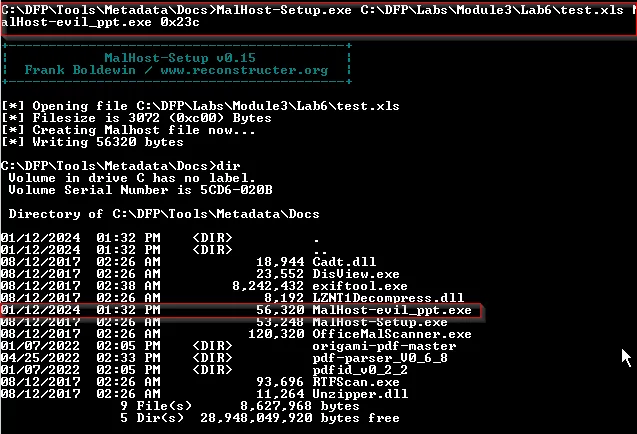
The output is MalHost-evil_ppt.exe file which is created within the same directory where these tools locate. Right click on the output file and selection the option for scanning with CalmWin Free Antivirus:
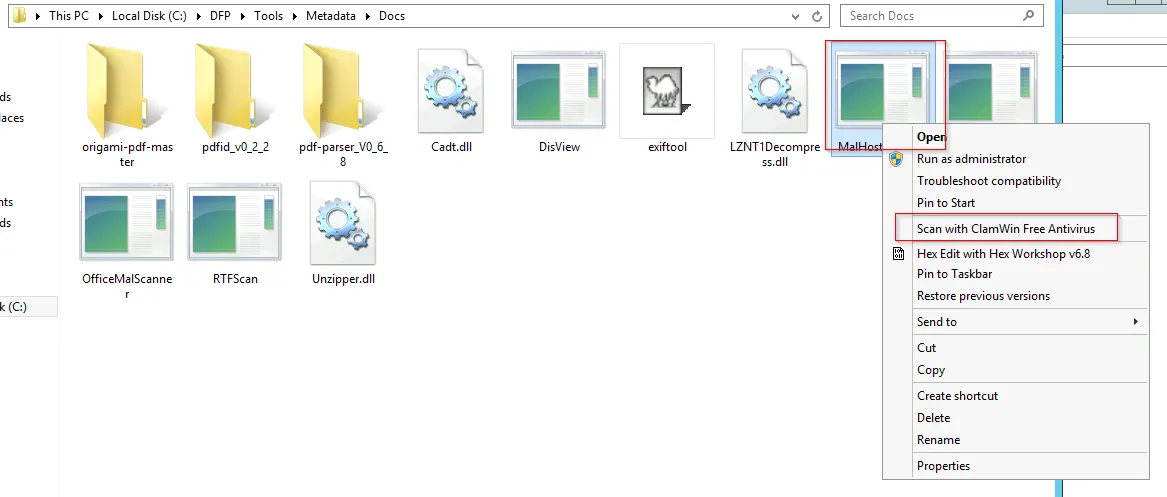
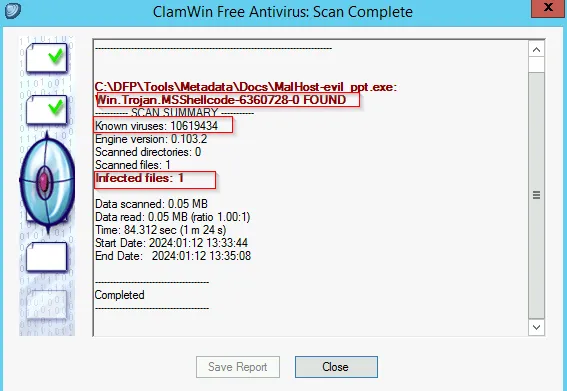
After scanning , the file found to be suspicious as it contain Trojan: