Notiz
Lab 3: Basic File Header Analysis
Scenario:
You are a forensic examiner in a large firm.
Maria, your colleague from the HR department, has a folder on her computer where she saves important files for work.
A few minutes before her lunch break, she received a resume for a job within the company. Maria opened the document, took a quick look at the resume, checked her important files folder, locked her PC and then went to lunch.
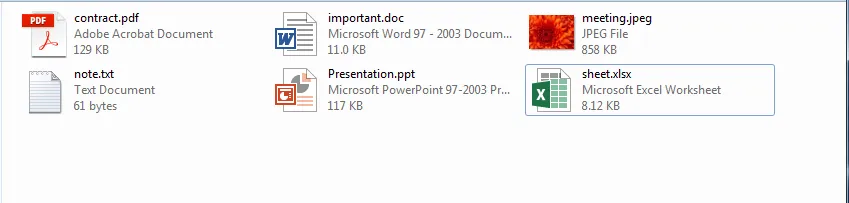
When Maria came back, she was surprised to find the folder of her important files like this.
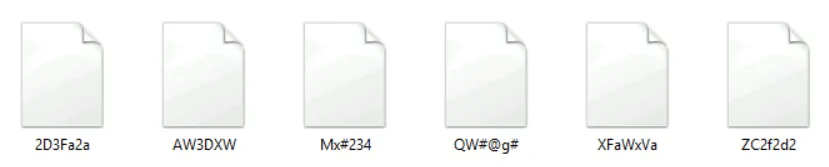
She called you and asked you to help her get her files to their original state.
Those files can be found in the C:\DFP\Labs\Module3\Lab3 directory of the Win10 machine.
Tasks
Task 1: Examine the “2D3Fa2a” File
As a reminder, the under investigation files are located in the C:\DFP\Labs\Module3\Lab3 directory of the Win10 machine.
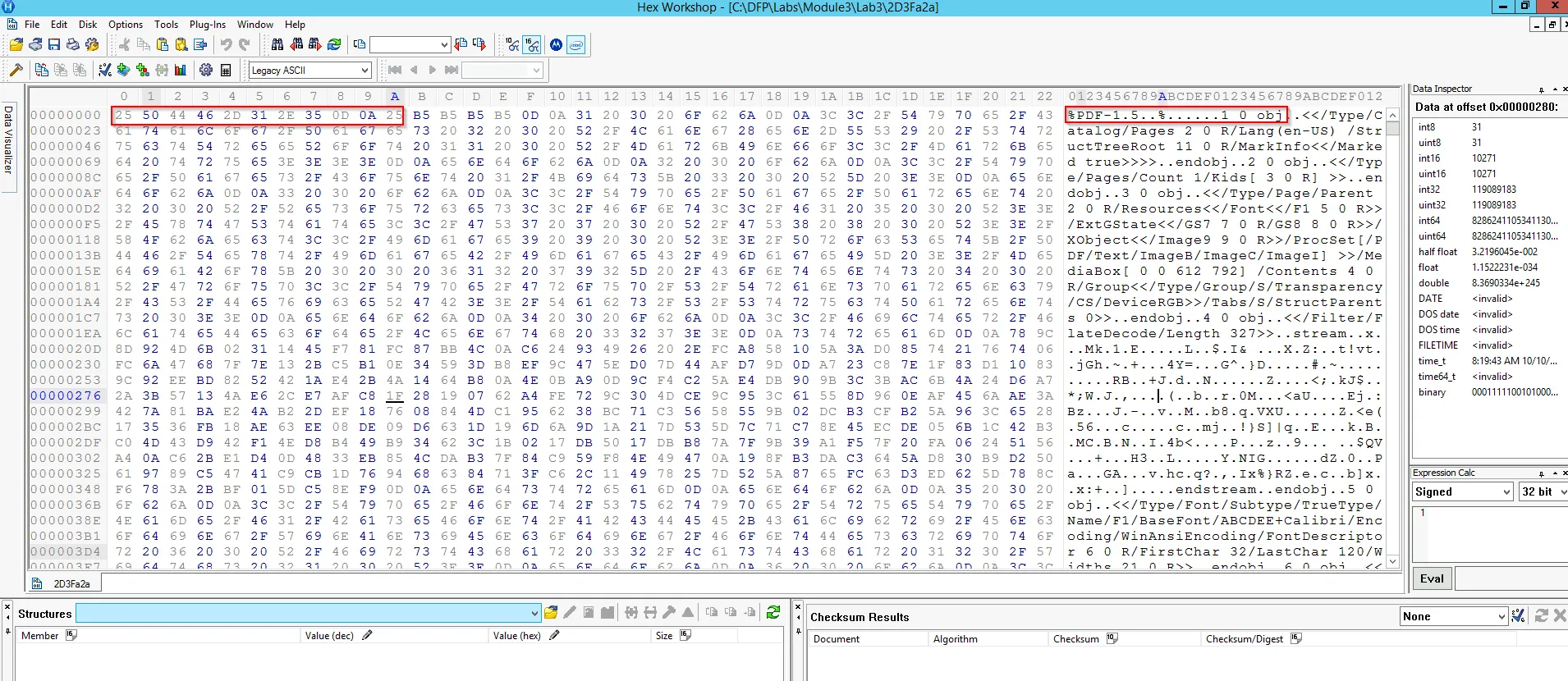
Open the file with Hex workshop [located in the Win10 machine’s Desktop] and examine the header and\or footer. Try to get the correct type of the file.
Solution:
We here use, “Hex Workshop” [Given in Lab] tool to investigate the given sample. When we view that sample file it shows the PDF header info as:
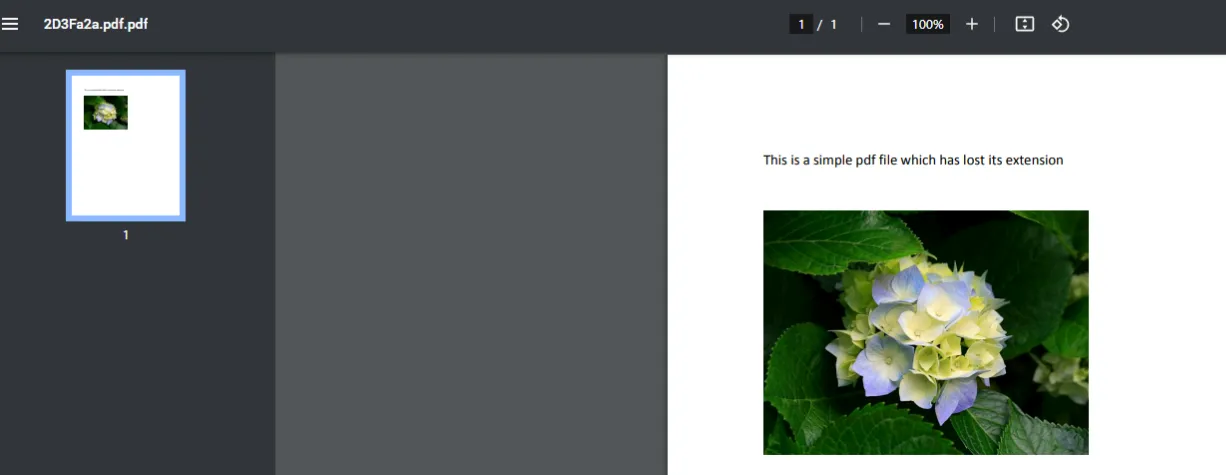
After renaming in .pdf format we got the file as:
Task 2: Examine the “AW3DXW” File
Open the file with Hex workshop and examine the header and\or footer. Try to get the correct type of the file.
Solution:
Let’s again use the same workshop tool to examine the file header
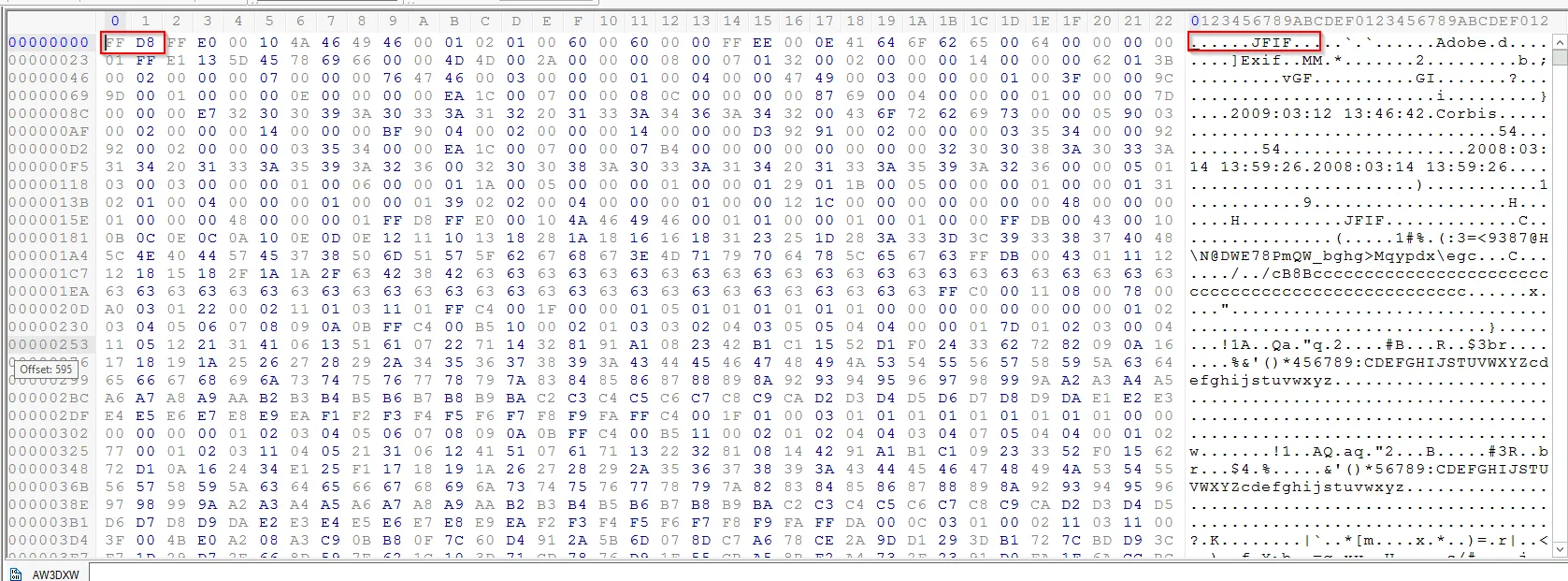
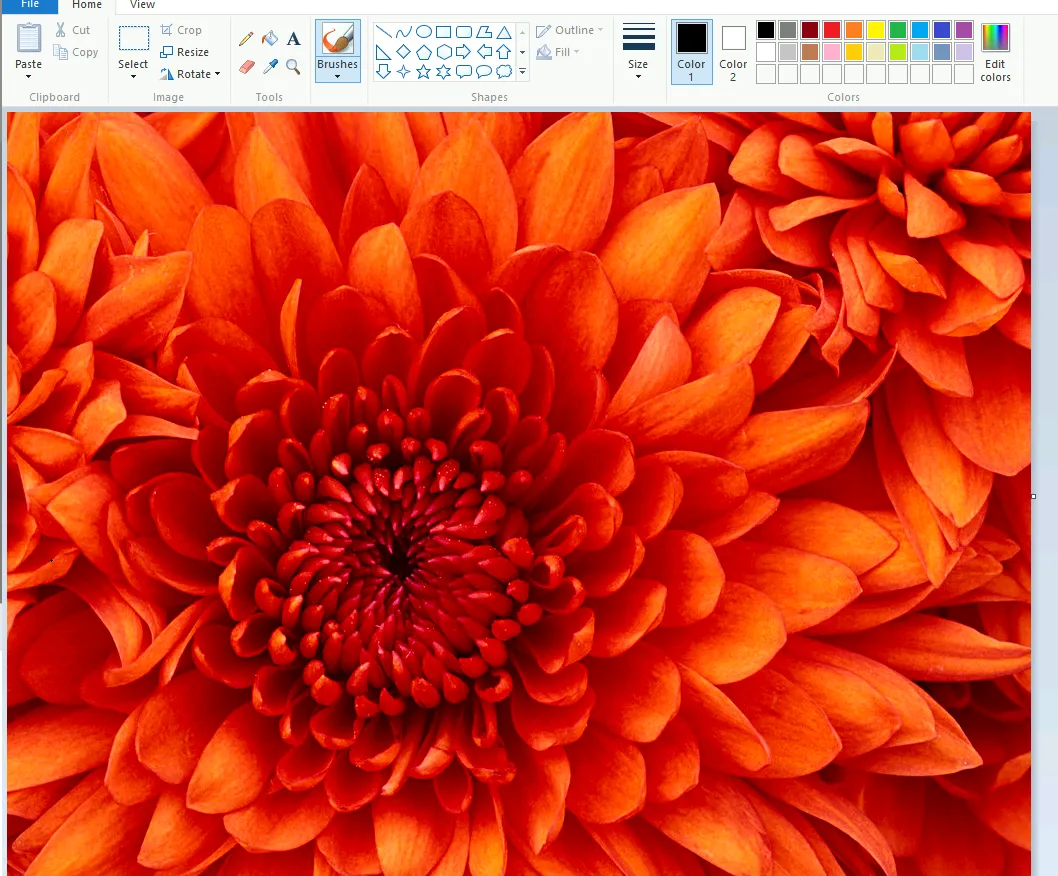
This file starts with “FF D8” and Ends with “FF D9” string value, which means the file is an image file. After changing the extension to .jpg we get the file as:
Task 3: Examine the “Mx#234” File
Open the file with Hex workshop and examine the header and\or footer. Try to get the correct type of the file.
Solution:
Similarly we will use the same GUI tool to extract the info:
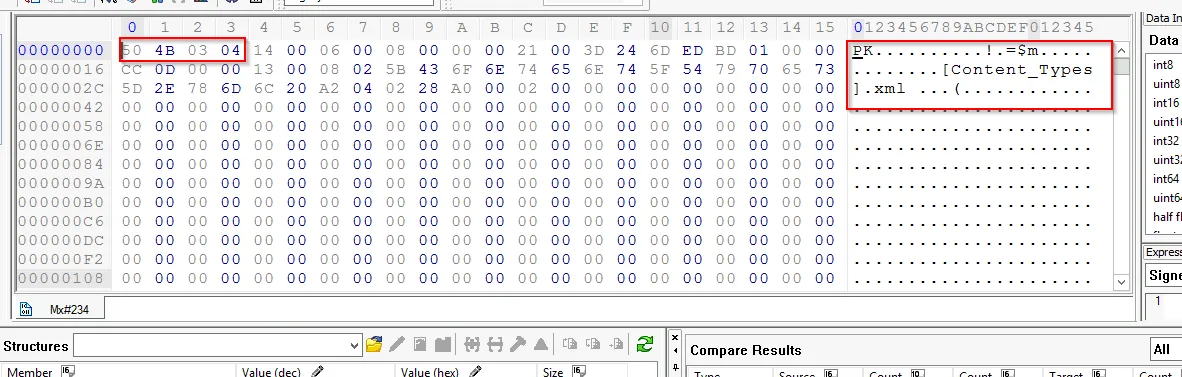
After analyzing the header string value, it resemble with the “DOCX” file. But when we explore the magic number (50 4B 03 04) it is found to the Office 2010 file.
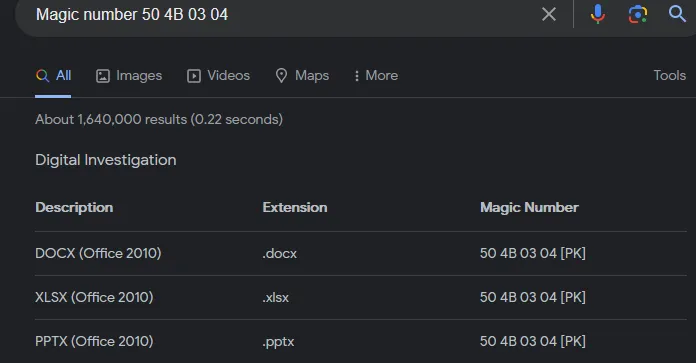
But for the proper extension we need to look for the tailer value:
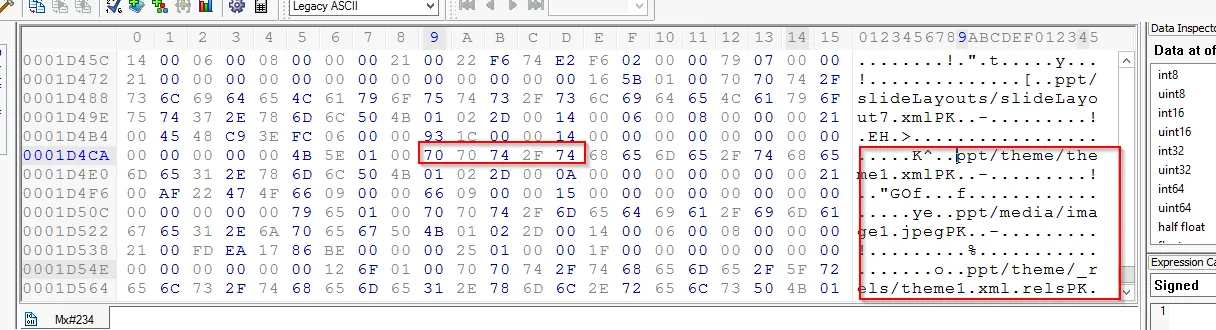 It shows that the file belongs to .pptx file extension. Let’s look into the file after the extension (PowerPoint doesn’t include in this machine)
Task 4: Examine the “QW#@g#” File
Open the file with Hex workshop and examine the header and\or footer. Try to get the correct type of the file.
Solution:
Using the similar GUI tool we can examine the file as:
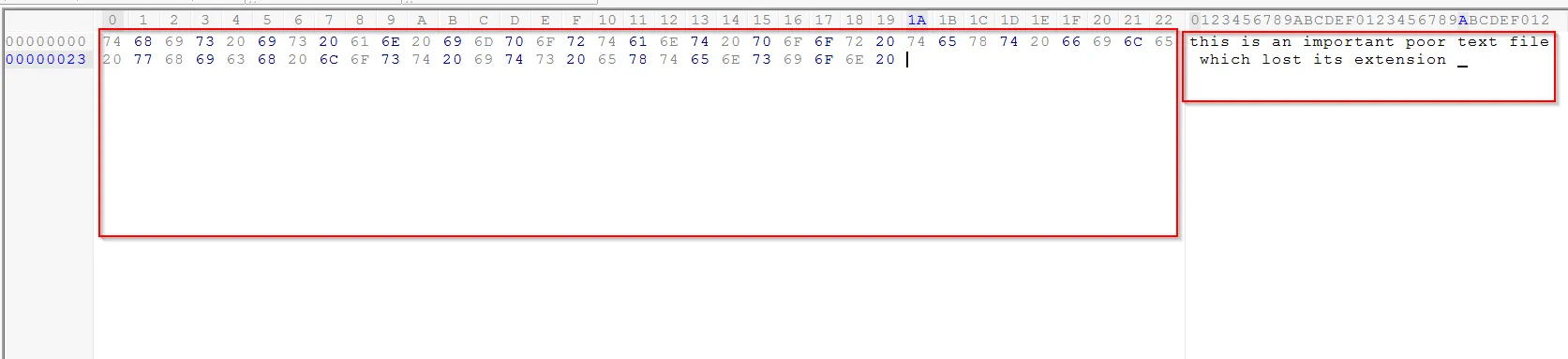 The strings resemble with the text file, so after changing the .txt extension we get the actual file the similar content.

Task 5: Examine the “XFaWxVa” File
Open the file with Hex workshop and examine the header and\or footer. Try to get the correct type of the file.
Solution:
We now use the hex-editor GUI tool to access the info related to file header and tailer.
The header of the given sample has:
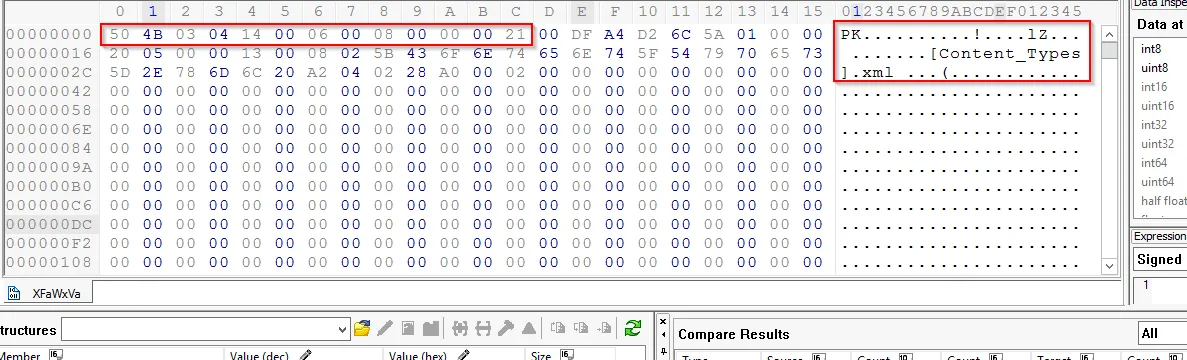 The header resembles with .docx extension as we mentioned earlier. To view the actual file we need to explore the tailer of this file:
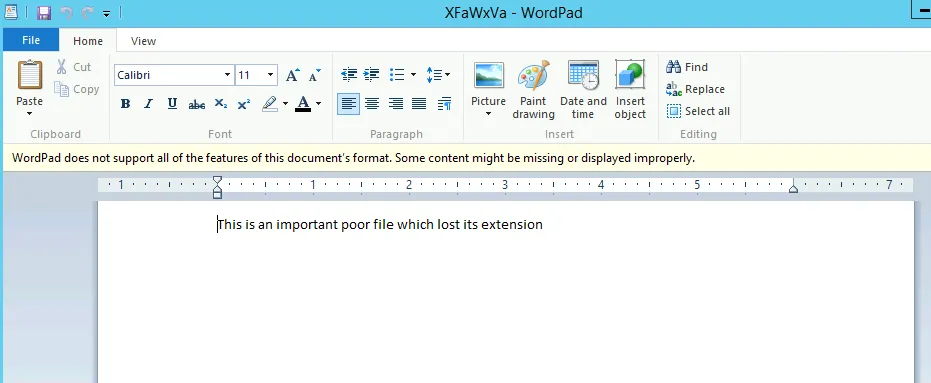
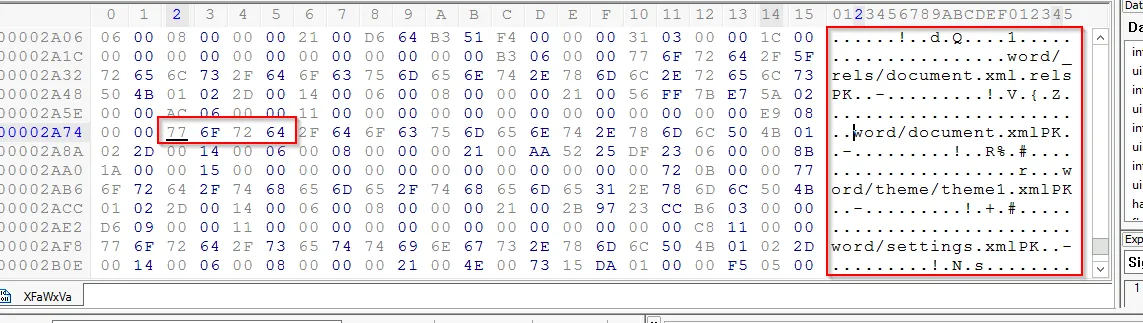 This shows the file is word document and after changing the extension of this file we get the actual file.
Task 6: Examine the “ZC2f2d2” File
Open the file with Hex workshop and examine the header and\or footer. Try to get the correct type of the file.
Solution:
Using the same tool:
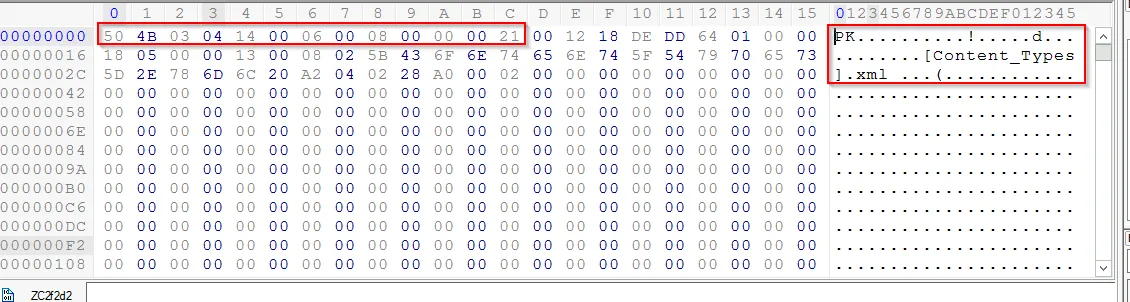 It resembles with the .docx extension within the header. As we already discussed above, we again explore the tailer of this file.
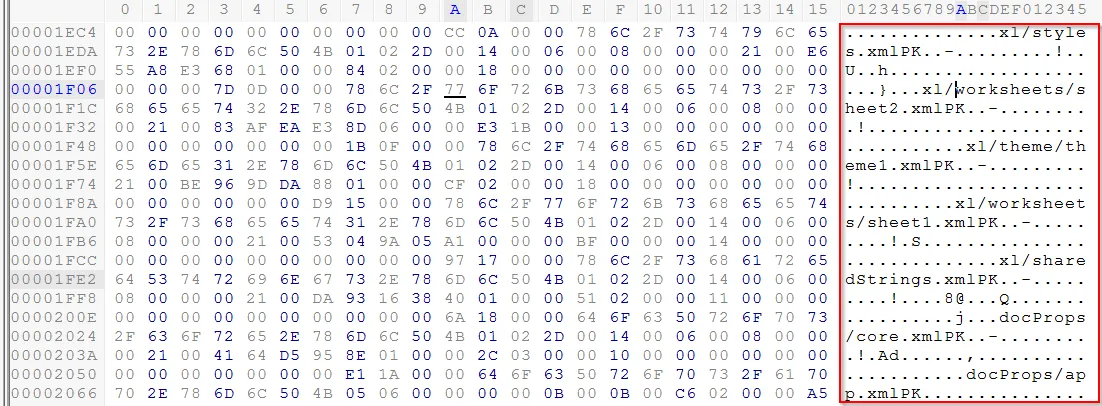 The file contain the information related to worksheet (Excel File). So changing the extension .xlsx. (Excel file is not supported within this LAB Machine)
To search for list of signature: Click here