Notiz
Extraction and Analyzing EXIF Data
Firstly download the ExifTool by Phil Harvey and also download the pyexiftoolGUI (No longer supported).
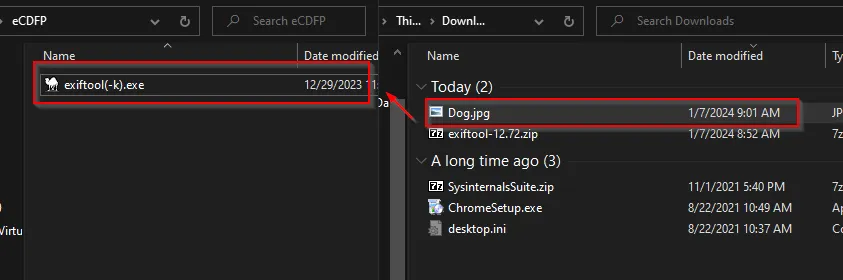
Now select the image and place it on the exiftool(-k).exe
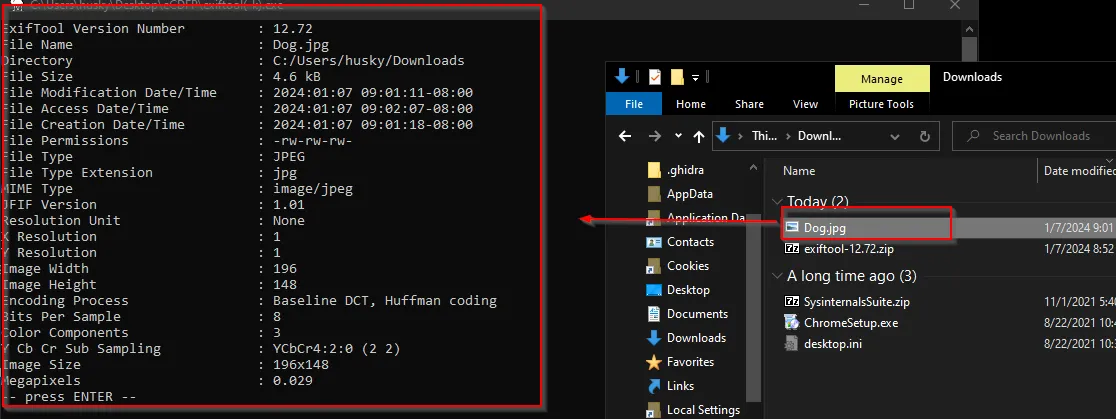
Now we will see the output of the image in cmd as:
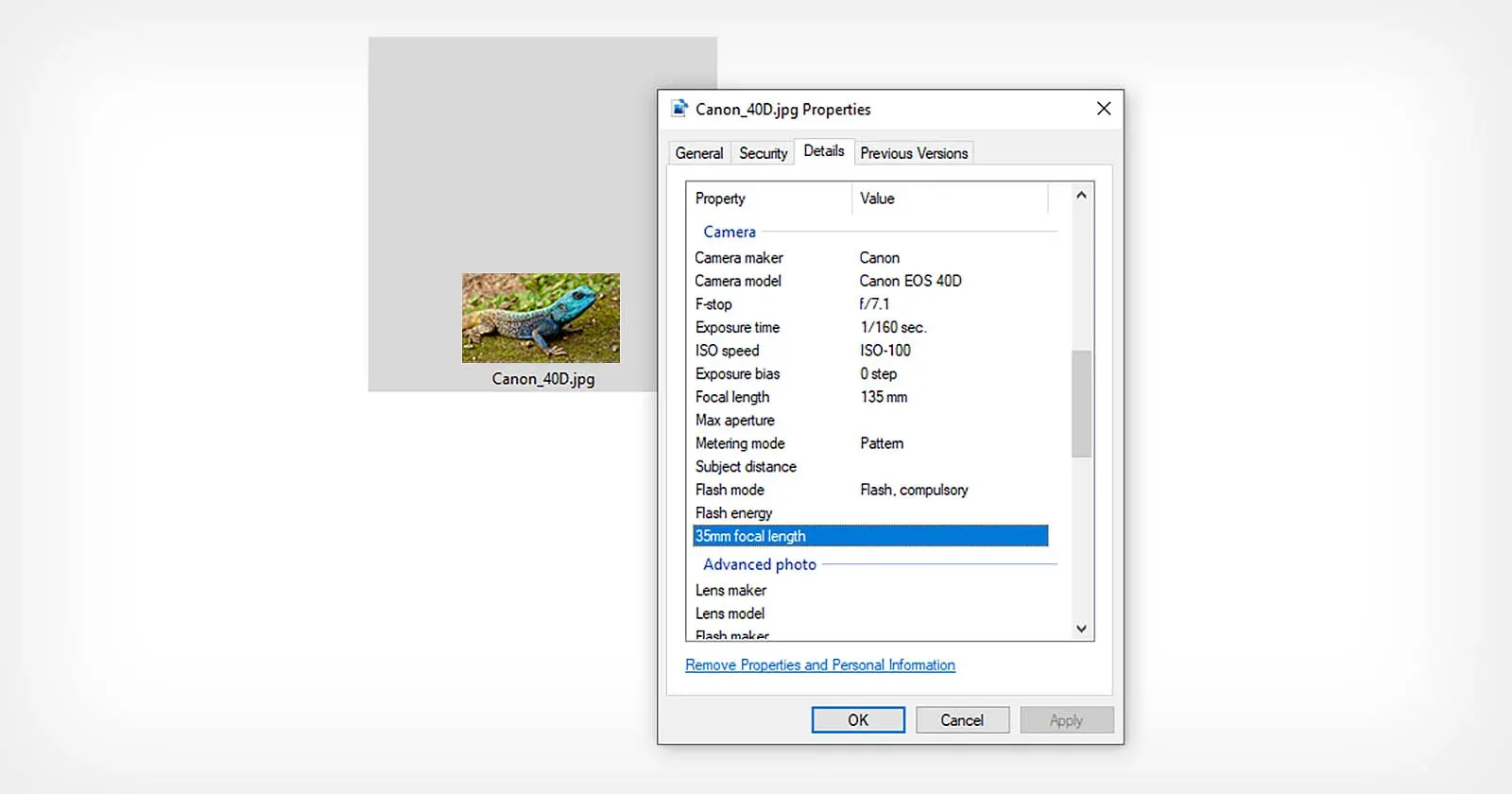
Within the image we can find several tags. To find the appropriate tag, we can view from the website: (https://exiv2.org/tags.html)
Jeffrey’s Image Metadata Viewer → Not supporting right now
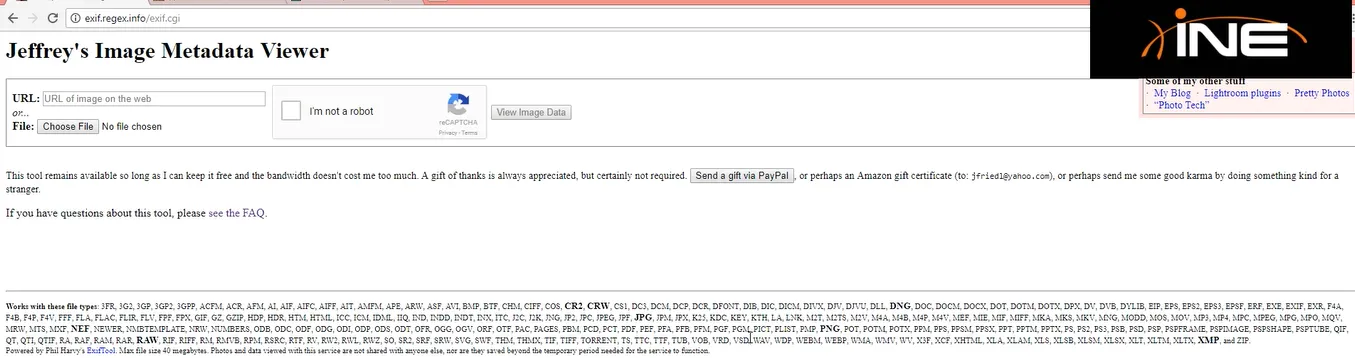
We can explore the extensions supported by the Jeffrey’s Image Metadata viewer from above figure.
Due the unavailability I used the Metadata++ tool to view the exif data:
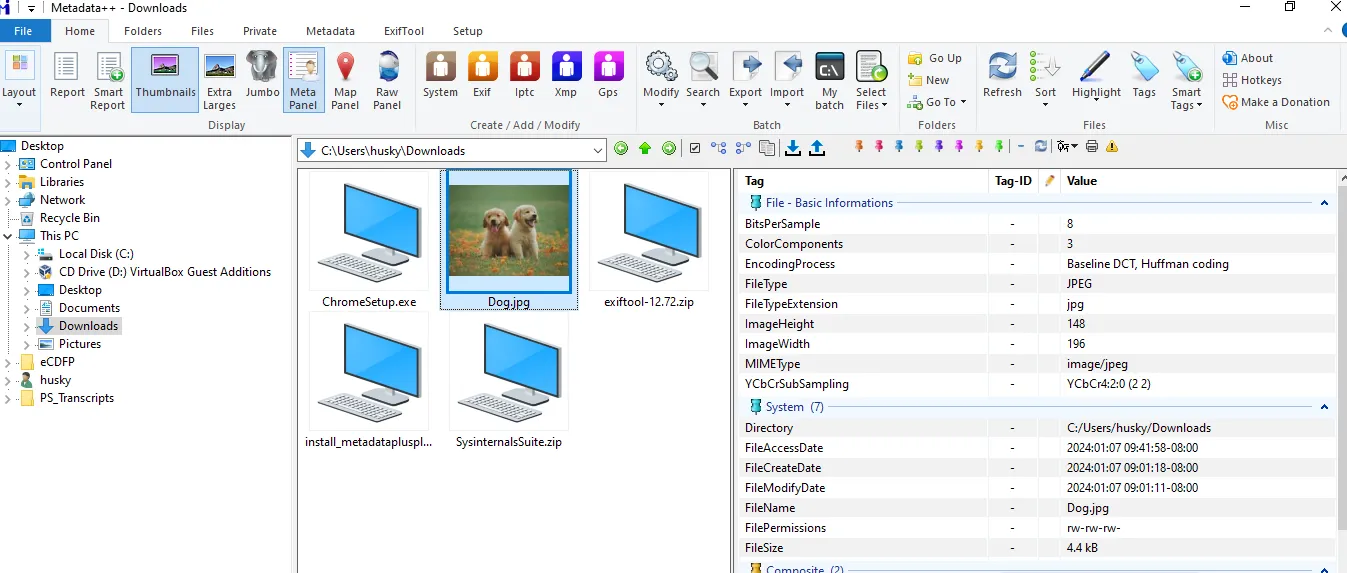
Image Document Analysis Using Ghiro
From the official page of Ghiro we came to know that there are several ways to deploy this tool and evaluate the forensic image. I downloaded the OVA file and ran on the virtual machine.
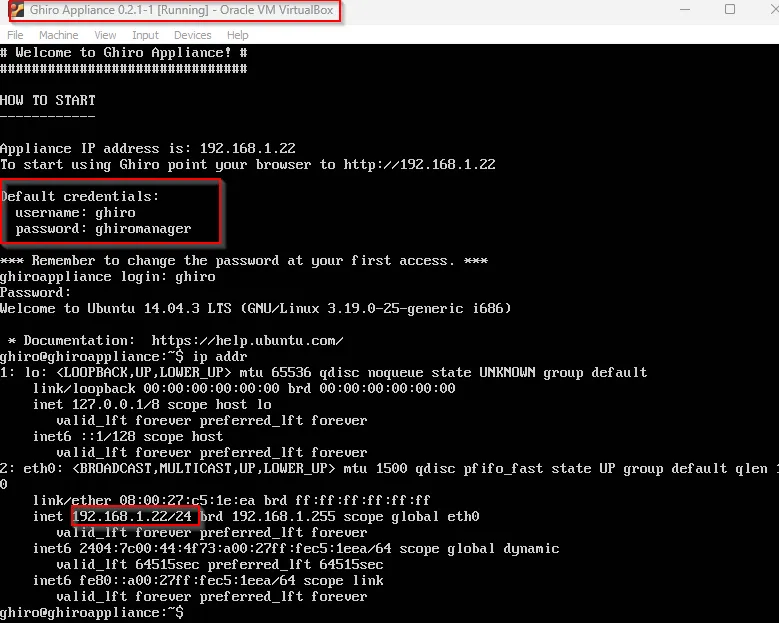
Now open up the web page using the same IP and now we can view the website as:
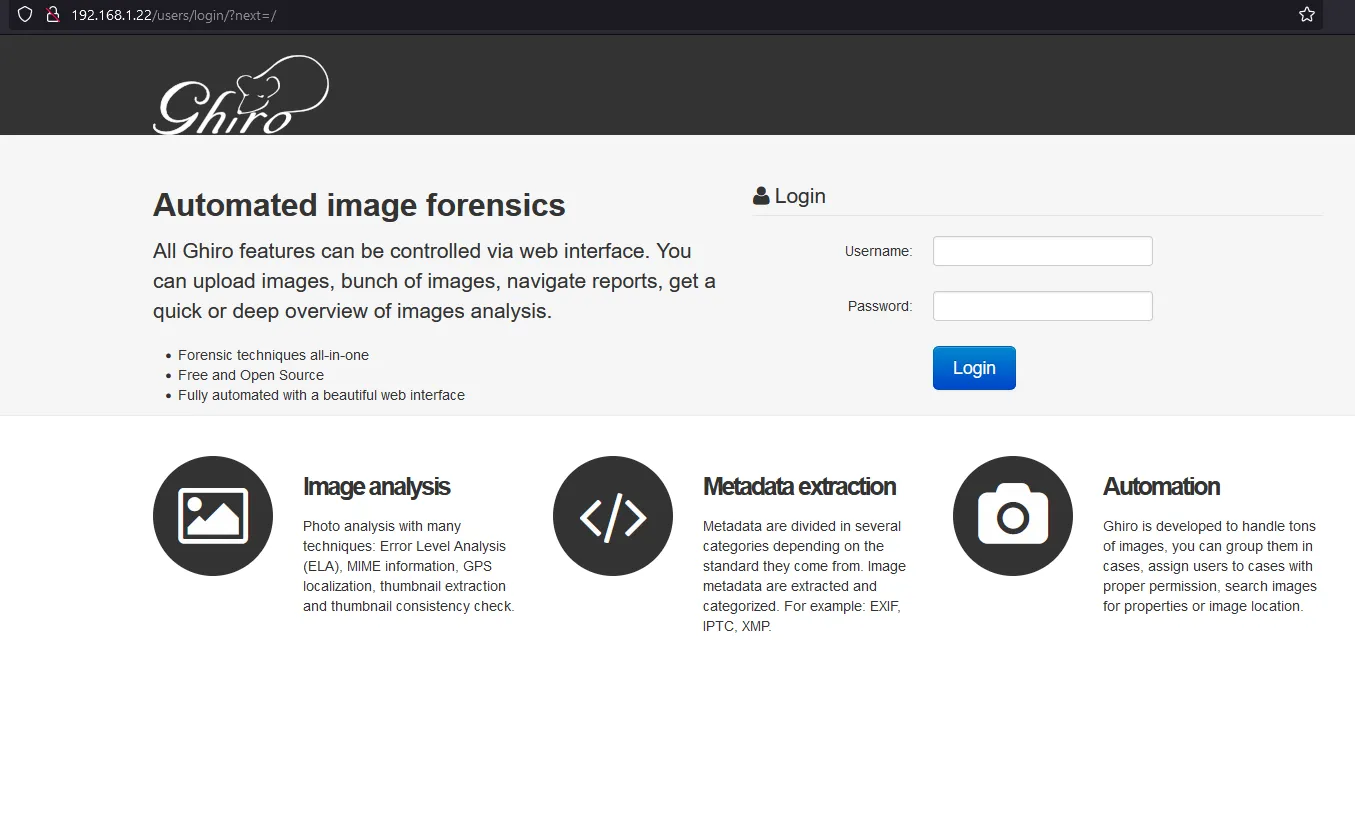
Enter the default credentails:
ghiro:ghiromanager
The logged in homepage is:
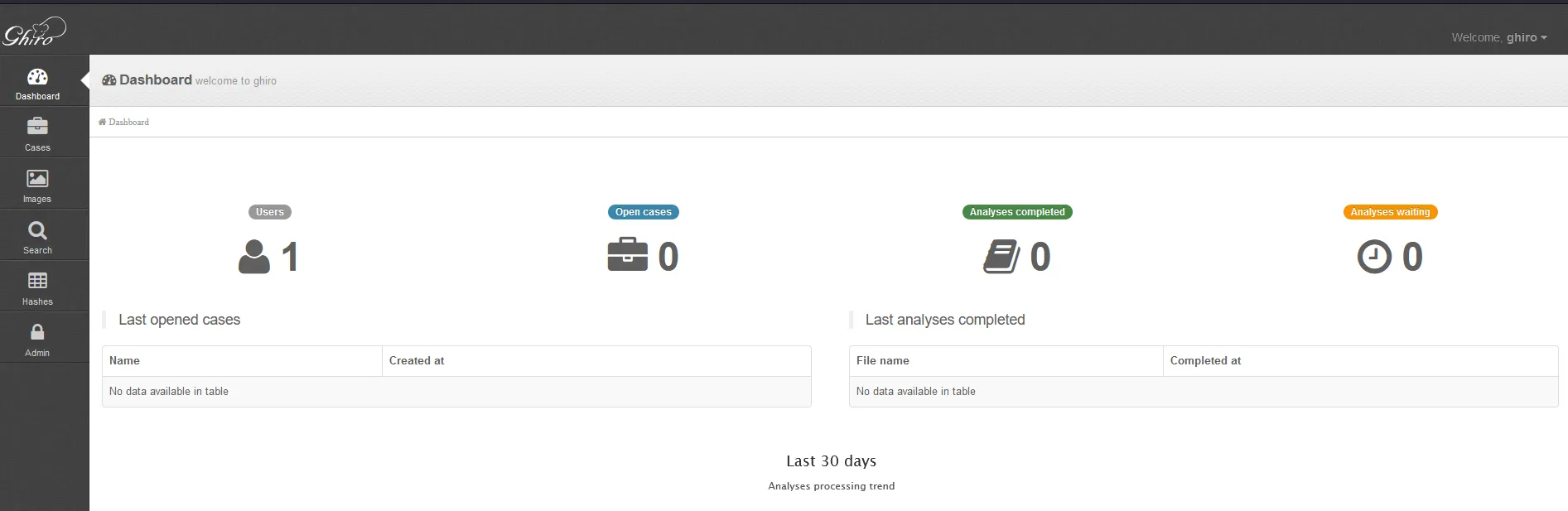
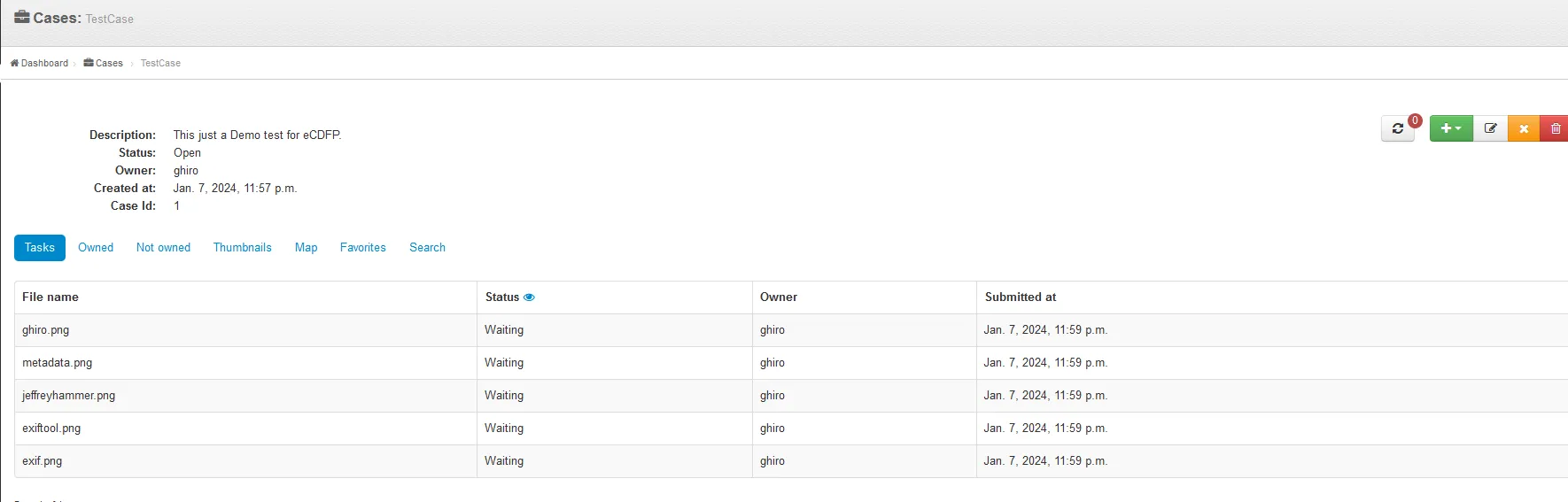
Now click on Cases and add a new case with all the description. Again, click at the left of the page to add images and click on Start Upload button. Our file uploaded as: