Notiz
Data representation and File Examination
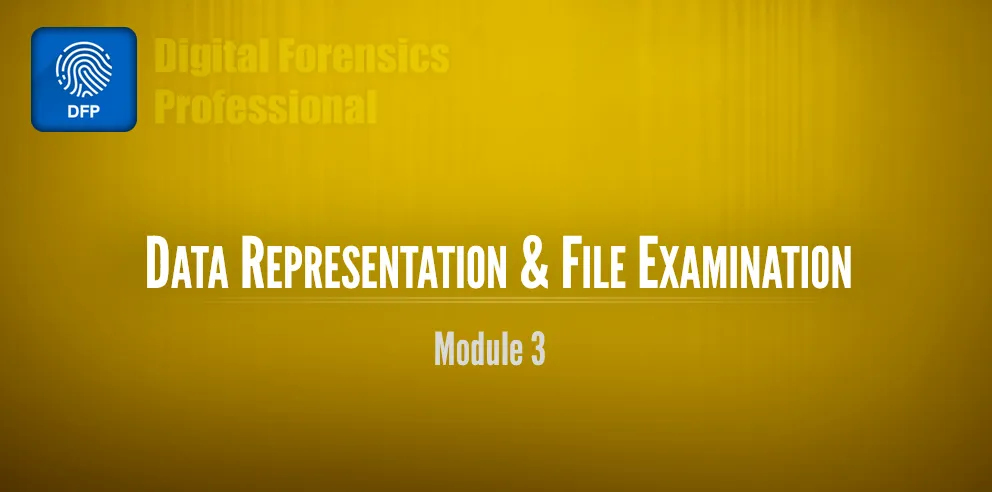
Difference between Kilobit and kilobyte
ASCII:
It is a system used by computers to represent characters and symbols in a numerical form. Each symbol is given a number/code.
File Identification
We need to note that for each file type there should be a reader that knows how to read its contents. For eg: .PDF files are opened by Adobe reader in windows. (Note: If a JPEG file extension is changed to .PDF, the file will not be opened in windows. The reason is that windows will try to open the file using Adobe reader which cannot read the JPEG file contents.)
File Structure:
Mainly the structure of file is identified bases on the components: name, size, signature, contents etc.
File structure is universal and the same for any operating system.
In order open a specific file, OS will use a specific reader; this reader knows where to find the file name or size within the different file components
Metadata
Metadata in general is defined as “Data Describing other data”
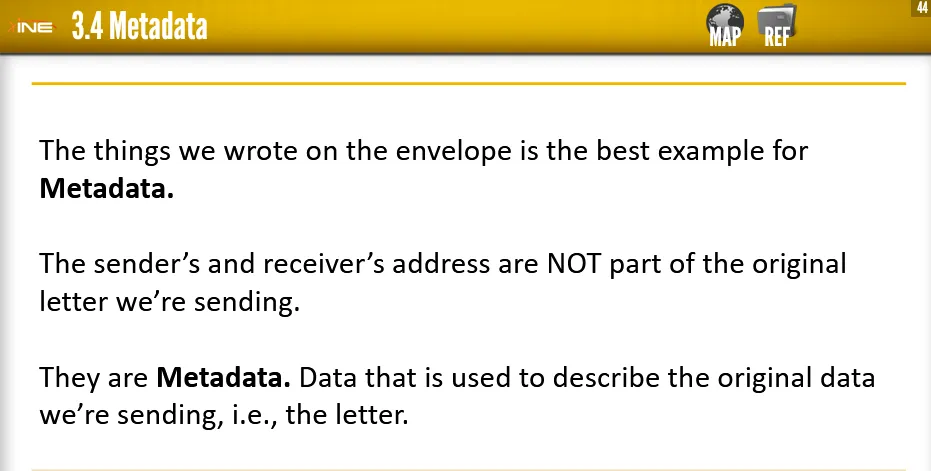
So, file metadata is the data that describes the file itself and is used by the OS applications to make opening, recognizing and processing that file easier.
-
MFT Attributes:
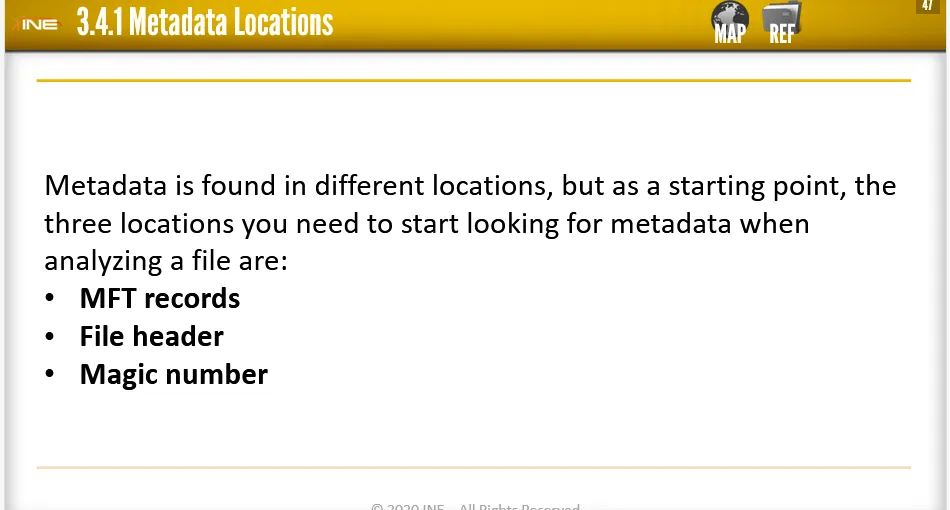
MFT → Master File Table (It is a database in which information about every file and directory on an NTFS volume is kept)
It is used by NTFS file system to store metadata which is necessary to retrieve files from the NTFS partitions. Each file has one or more MFT record.
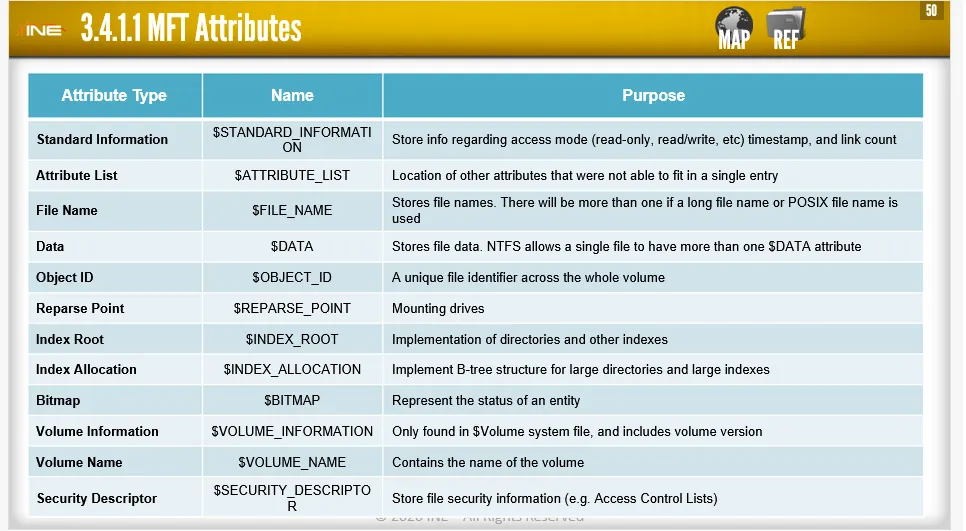
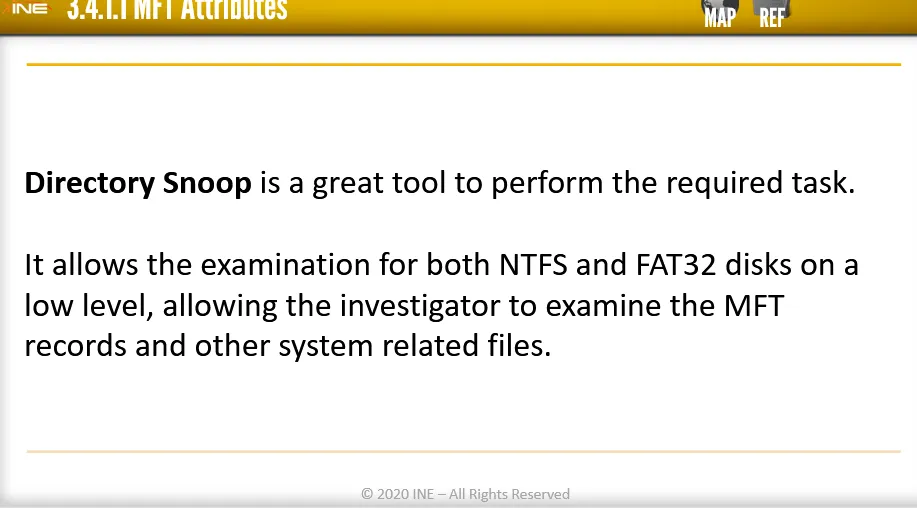
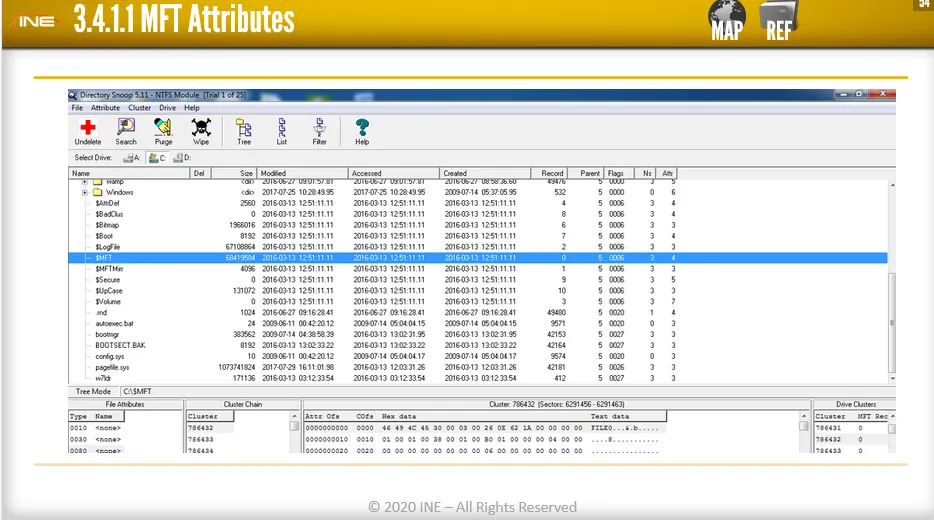
MFT records can be used when searching for files within the file system. It also worth mentioning that those records could be used as an evidence to prove the existence of lost or deleted files.
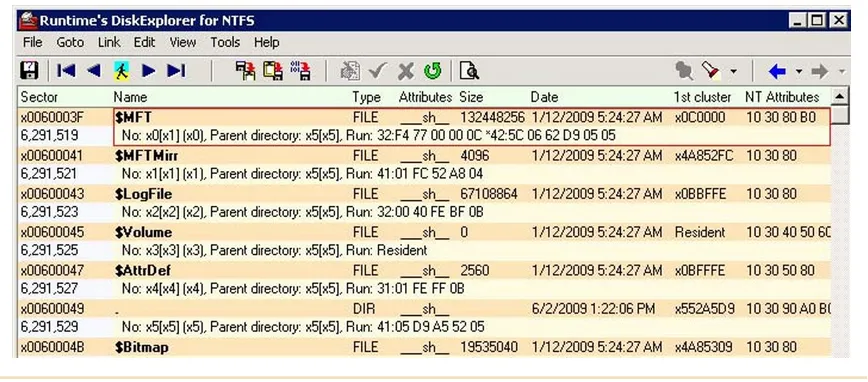
Another great tool for NTSF attribute examination is DiskExplorer for NTFS
https://www.runtime.org/diskexplorer.htm
-
File Headers:
File header is a unique identification section found at the beginning/head of every file. The header usually contains data used by an application that opens a file. The header contains things like name, author, date of creating, size or data that helps performing error detection and correction before opening the file.
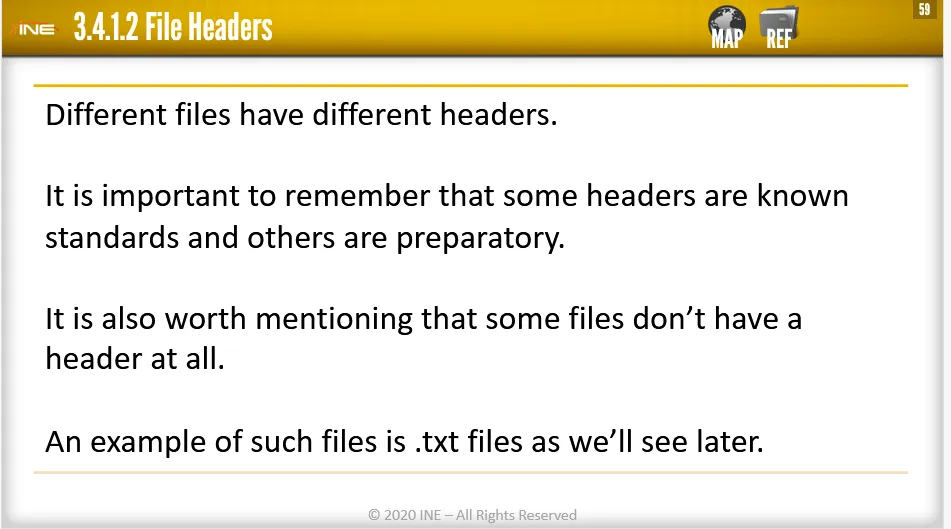
The header is usually checked by the reader application before opening the file. This is why Adobe Reader, for example could recognize the damaged PDF file right after opening it.

Headers and Trailers of a file can be checked using Hexeditor
-
Magic Number:
Magic number is a unique string, usually at the beginning of the file, which can be used to identify the type of the file. It is mostly used by Linux or Unix applications to try and ID the file without need for reading the whole header.
In linux, File command can be used to identify the type of file.
→ A list of magic numbers can also be found in most linux systems in : /usr/share/file/magic

Types of Metadata Three main types of Metadata can be used in Digital Forensics:
-
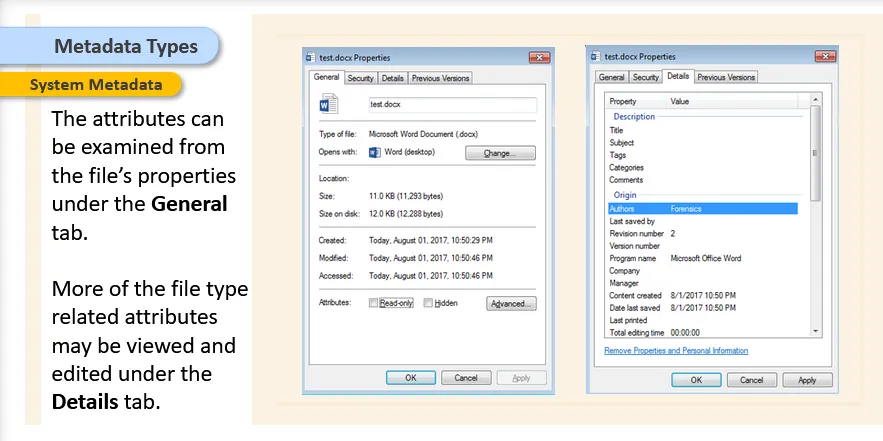
System Metadata
System Metadata are created, edited and used by Operating System of many purposes. The OS file system is one of the main components that heavily relies on metadata to keep track of the files it manages.
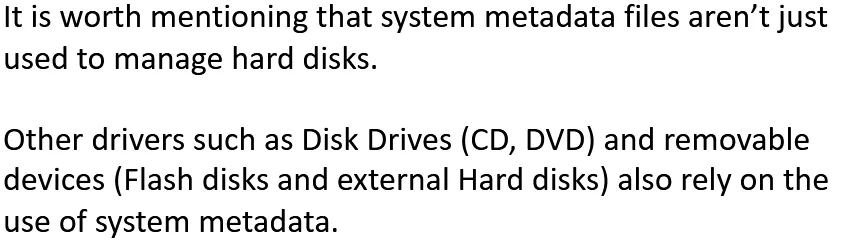
- Storage devices (Fixed and removable) use system metadata to track the addresses of the contained files and how they stored.
- System Metadata are mostly used in Forensics to track a file that doesn’t exist anymore (removed, deleted or moved). And NOTE that system metadata files wouldn’t help in retrieving the content of the file.
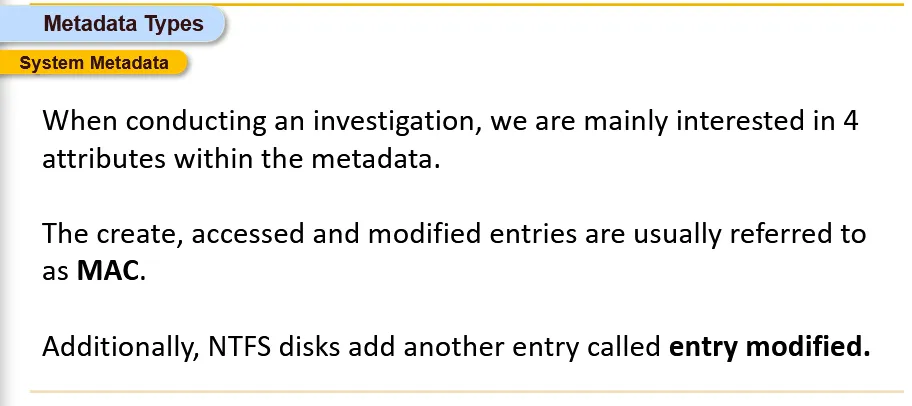
- Entry Modified(EM) stores the last time of when the MFT entry was modified. MAC and EM analysis are most important in analysis. And it is crucial for an investigator NOT to alter the MAC and EM entries when analyzing.
-
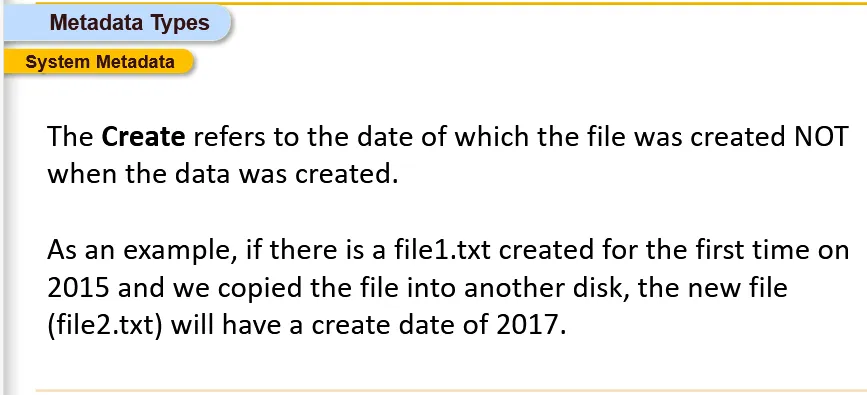
Create Metadata usually describes when the file was first created. The date we find always indicate the date which the data was originally created at.
- Access attribute refers to when the file was last opened, moved or copied. Due to the nature of this attribute, it is the most frequently changing attribute.
-
Modify attribute reports when the content of the file was last changed. This attribute is a great value for the investigators. Knowing when a file was last changed is a crucial step for any document related investigation. Also note that, Modified attribute changes only when the content of the file changes. That means modifying another attribute for the file Eg: changing Access attribute won’t change the Modified attribute

Entry modified attribute is another attribute found only in NTFS and it tells when the other attributes were last modified. The problem is that, there is no telling which of the attributes was changed.
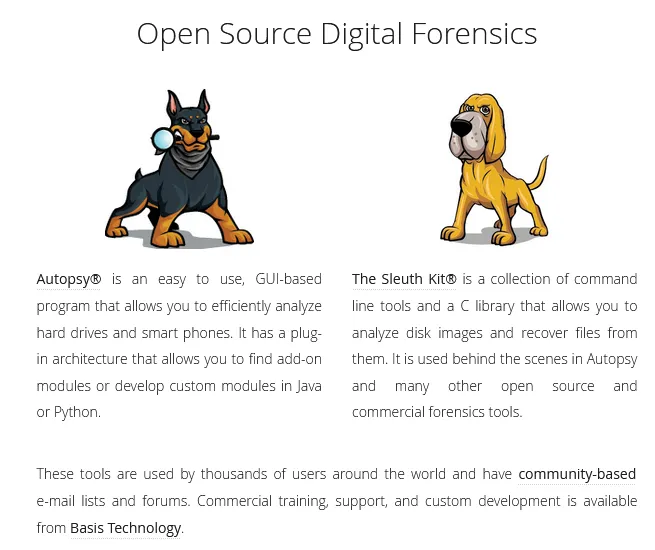
One of the important tool to gather the metadata for all the files that falls within the search category, list and analyze them: Sleuth Kit
- Analyzing just metadata won’t be enough to investigate, Document Management Systems (DMS) are systems used to log, manage and organize the storage of digital documents. It keeps track of stored documents and users who own, modified and/or viewed those documents. OpenKM is an example of such system that can manage and organize various types of files through web interface.
- DMS create many metadata records and files to help keep track and manage stored files. But the investigator needs to understand how and where does the DMS stores its metadata before they’re able to extract or analyze information from it. It is recommended to go through the DMS documentation before gathering data.
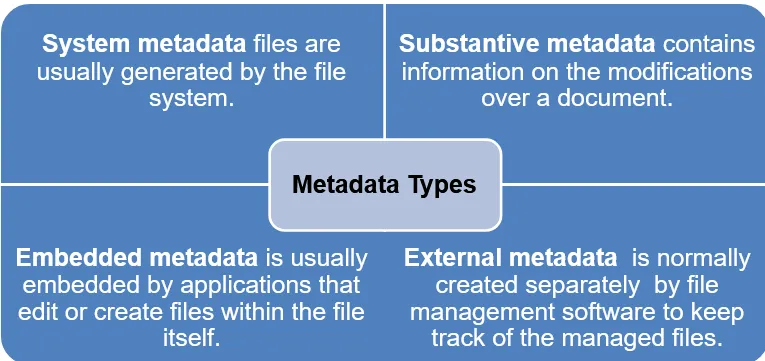
- Substantive Metadata
-
Embedded Metadata and External Metadata
-
-
Temporary Files:
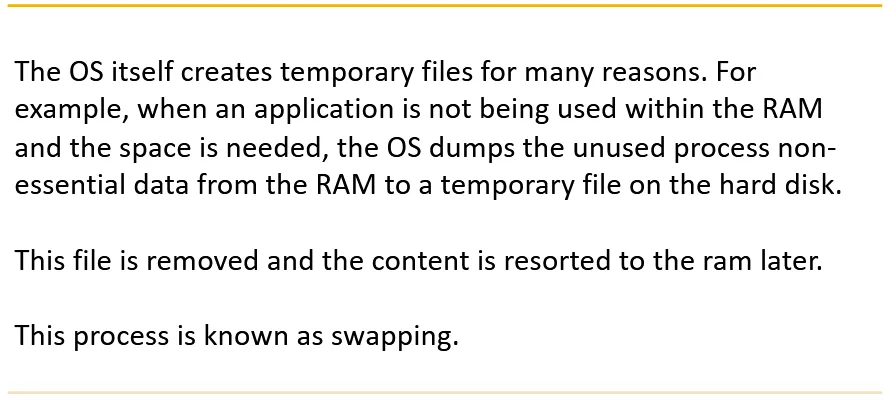
These files are normally created and used by an application or an OS for a short period of time. They are created with intent of removing them later once the application exists. Different application create temp files for reason, For Eg: text editing applications create temp files to track and handle the users edits on spot and allow to recover older versions of the same document.
Basic OS utilities such as internet browsers also create a temp files and data in what is known as cashing. It is done by browsers to save parts and objects from the most recently visited pages to make loading them easier the next time.
Sometimes deletion of temp files are stored permanently. The most common issue that allows any temp files to store permanently called, Crashes. This condition is mostly caused when an application or an OS crashes and leaves the previously created temp file within hard disk. And these temp files are useful source of information containing metadata and/or previous unencrypted version for the document.

Data Hiding Locations:

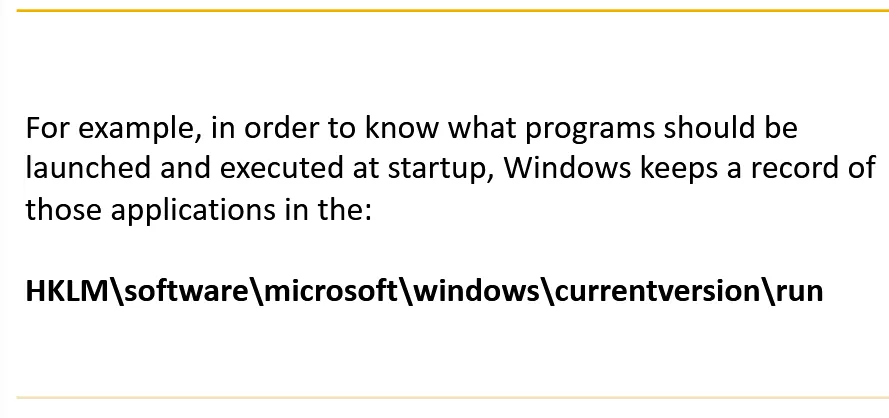
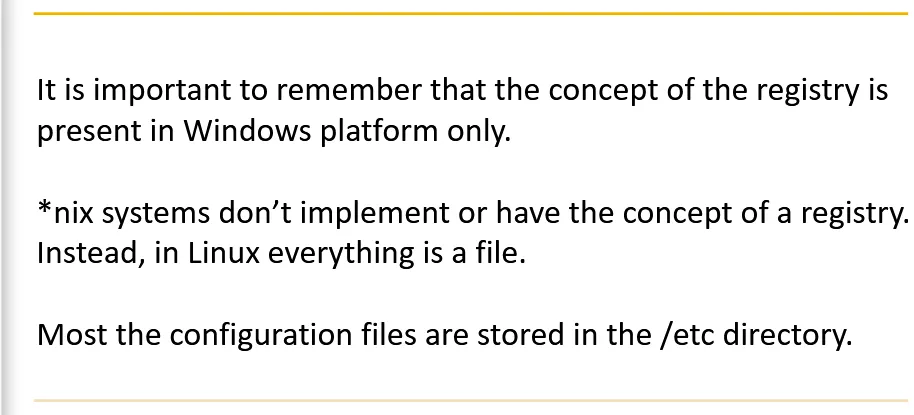
Think Windows Registry as big directory containing many configuration files. These configuration files are used by the OS and the applications on it, to store configurations related to how the application behave.
Data can also be hidden in the document’s metadata itself. When you know where the metadata of documents be hidden, it will be easy for investigator. Windows File Search tool could be used for data within a document’s metadata. Strings tool could also be used to dump strings from a file. Using Alternative Data Stream (ADS) [Only present in NTFS filesystems] is another place where data could be hidden.
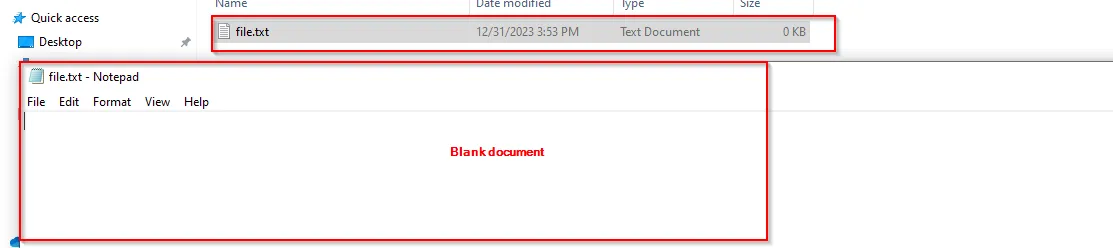
ADS allows a user (malicious or normal) to store data within a file without affecting its size or view. This could be exploited to hide data within a file where its hard to notice.
The ADS for a file could be accessed using the “:” character. Let’s do in demo:
First open a cmd and create a file using notepad command and save the file as:
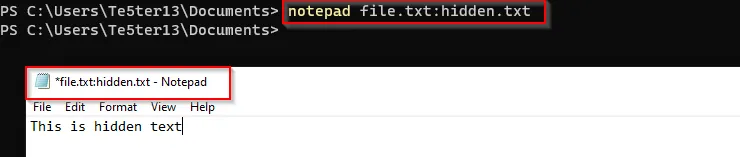
Relocate the file and open the file.txt file, it will be empty
Tools used to investigate ADS files are: Streams.exe from SysInternals and ADS Detector.
One effective method to neutralize the data exfiltration through ADS threat is to move the suspicious file to a FAT32 partition. Since FAT32 systems don’t support ADS, the data hidden within the ADS will be gone.
Try it with Windows CMD.
For more info: https://www.youtube.com/watch?v=S4MBzeni9Eo
The updated NTFS system has allowed us to view the created ADS file as (using CMD):
dir /r
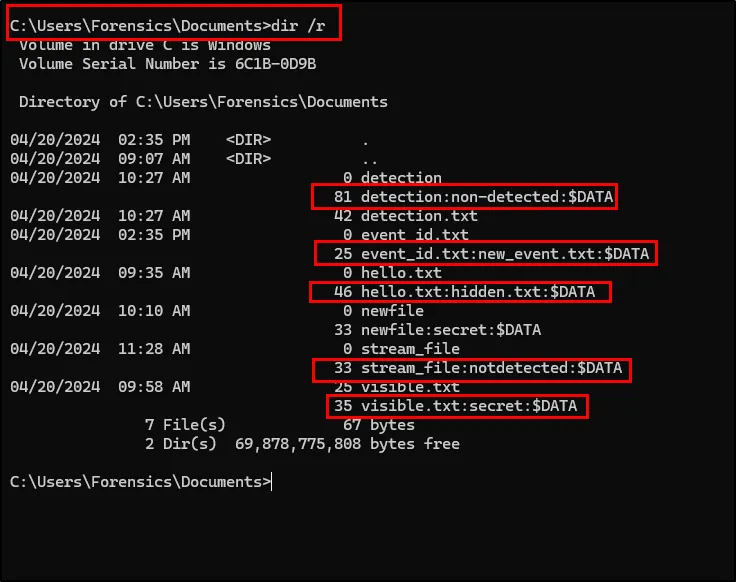
But to view, we need Powershell stream command.
Get-Item -path C:\Users\Forensics\Documents\* -stream *
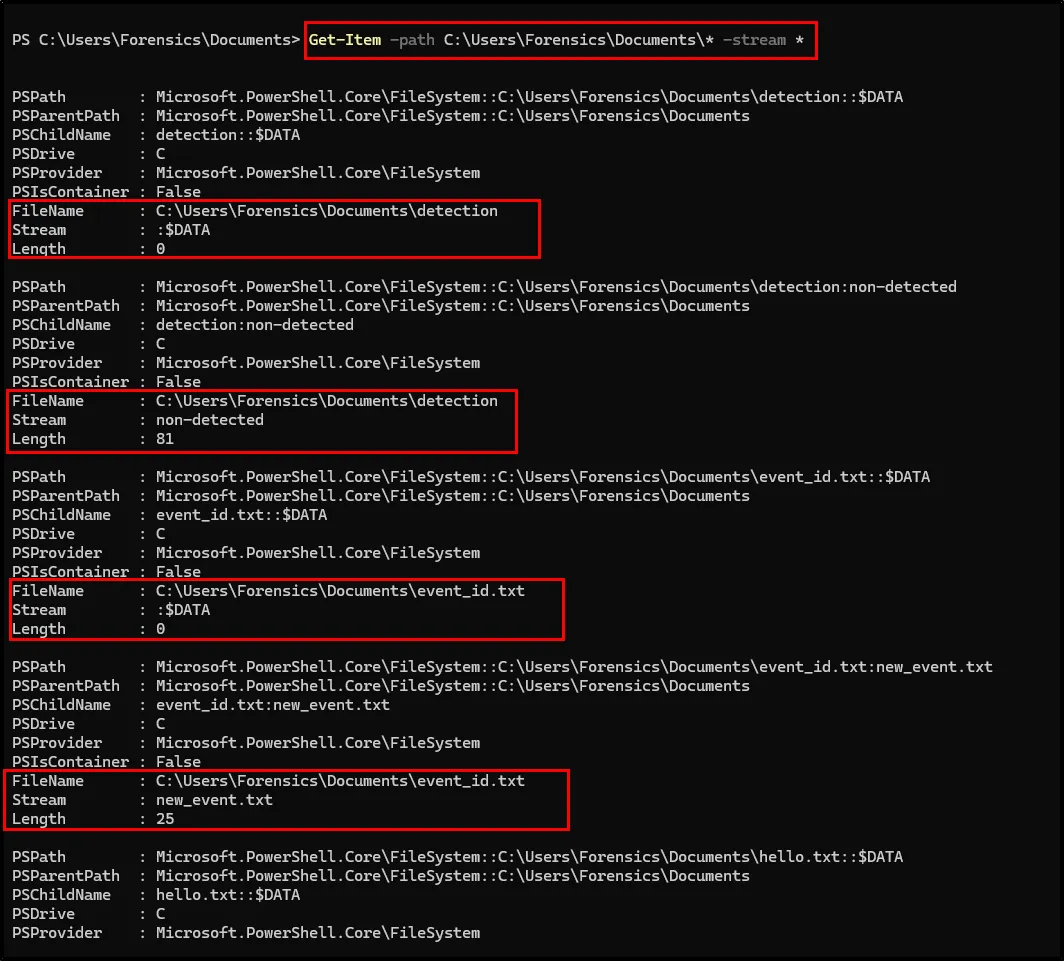
Just keep noticing the FileName and Stream value. We will use this field to view the contents within those ADS files.
Look above the first one, with the filename detection and its stream is non-detected of Length 81. Now to view this content
Get-Content -Path C:\Users\Forensics\Documents\detection -stream non-detected

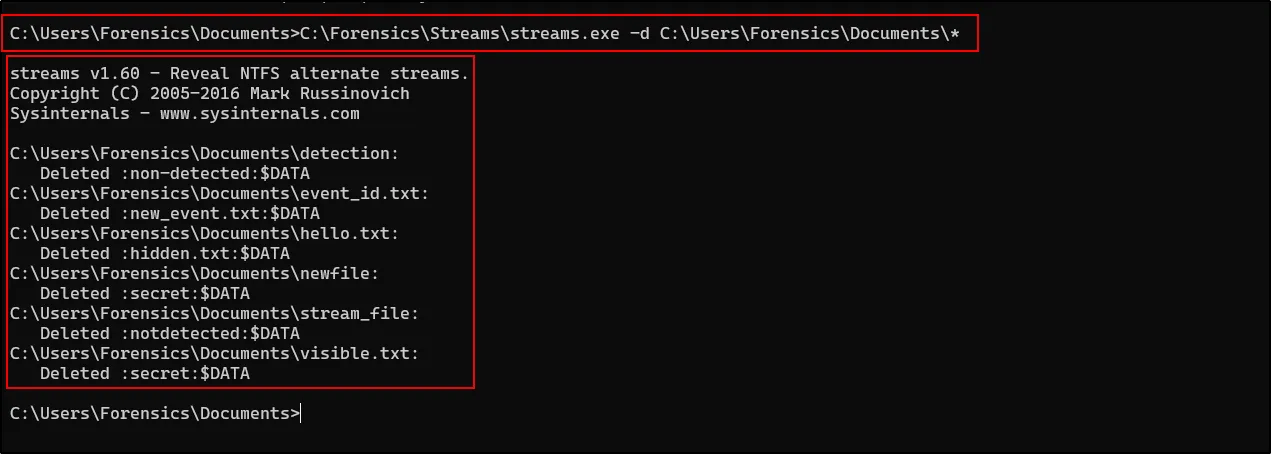
We had detected those Streams file using CMD, let’s delete those files using Streams tool provided by sysinternals as:
Streams.exe -d <path>
File Analysis
Some file signatures required during DF.
→ https://www.garykessler.net/library/file_sigs.html
→ https://en.wikipedia.org/wiki/List_of_file_signatures
-
DOCX Analysis:
DOC file consists of many sections such as Mainstream, which contains the files main data with a header containing information about the document and pointers to other elements within the document. This header is also known as File Information Block.
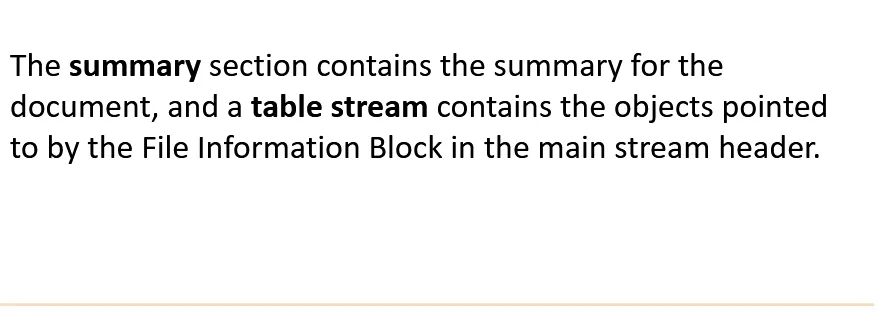
Microsoft started using office open XML format. And moving to an open xml-based file format made the process of decomposing and parsing the file much easier whereas in older version of MS-Office each format required a specific parser.
Advantage of the Open xml-based file format is that they are less susceptible to exploitation by attackers.

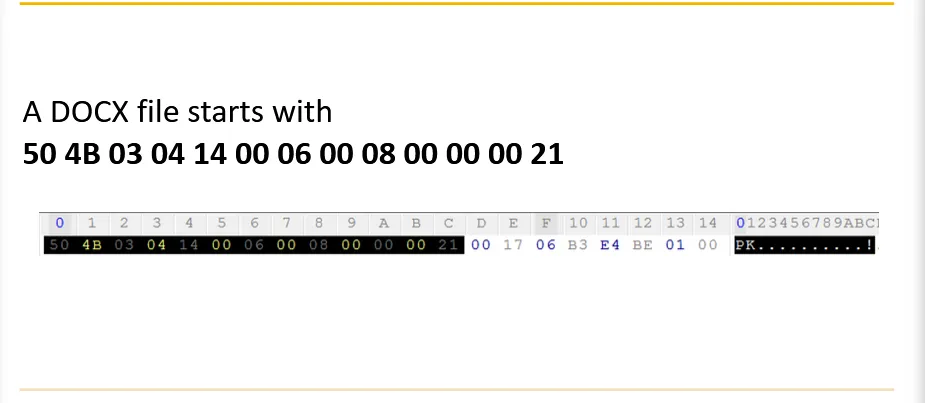
This can be achieved from hexedit as:

And the last section of the file starts with docProps/app.xml string.

The DOCX metadata are usually found in docProps file within the compressed document in the form of XML files. And the folder contains two files:
-
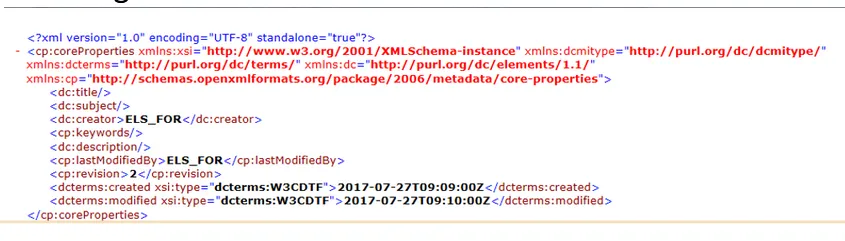
Core:
→ It contain fields that are used to describe the origin of the document. It contain fields like: author’s name, the last editor, and the creating and editing dates.
-
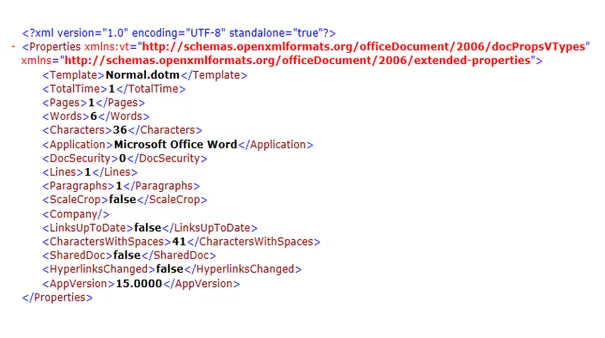
app:
→ The app.xml usually contains data describing the content within the document. The file describes the number of words, characters, lines and the application which was used to create the document.
docProps is a folder that contains properties for the document as a whole, typically including a set of core properties, a set of extended or application-specific properties and a thumbnail preview for the document.
-
JPEG Analysis
→ Joint Photographic Experts Group.
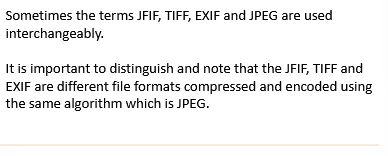
A lossy compression method is used to for images especially photos that were taken by camera. JPEG has also a pre-defined file structure: A header, metadata and a footer.
The extension found for JPEG files are: JPG, jpg, JPE and jfif.
Properties of JPEG:
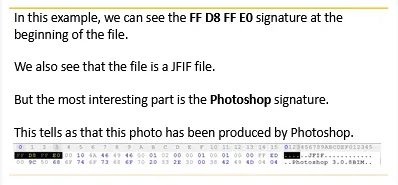
→ Starts with FF D8 bytes and ends with FF D9 string.
→ Consists of section and the value FF is typically used as delimiter to indicate the start of a new section. (In most cases the FF D8 at the beginning of the image is followed by FF E0 {in some cases FF E1}).
Within the file header, the investigator may find many interesting information such as software signature, date, camera and OS details etc.
PDF Analysis:
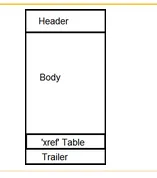
The Header within PDF contains the version of the used PDF

Here PDF version is 1.4 as shown in fig.
The Body of the PDF file contains the data (strings, image, flash, etc.). The body is what is usually displayed to the user by the reader.
Different types of data are usually referred to as objects. Objects can also work as references to other objects.
Those object pointers are usually defined by an object identifier and the generator number.
An object body is usually contained between obj and endobj keywords.

A series of object belonging to the same entity are usually called streams. Streams are typically used to present large data types such as images, flashes and videos. A stream is usually defined by the stream and endstream keywords.

For optimization purposes, streams are usually compressed in order to take less space on disk.
Not just streams and objects should be looked by investigator. There are other keywords; its existence indicate the presents of an interesting content within the PDF.
Keywords such as action, URI, JavaScript, etc. should also be looked closely within a file. The JavaScript, RichMedia and JS keywords indicate that there is a JavaScript code embedded within the PDF file. Action, OpenAction, Named, Launch and acroform also important keywords to look for.
Actions and JavaScript content work hand-in-hand in exploiting and delivering malicious content within a PDF file. JavaScript objects may be used to deliver shell codes and other malicious payloads to the victim machine. Actions on the other hand,, can be used to perform an action on victim’s machine, such as opening a port and establishing a listener behind it.
Another approach would be to use the URI in order to connect to malicious remote devices containing malicious content. The encrypt keyword indicate that there is an encrypted content within the PDF file.
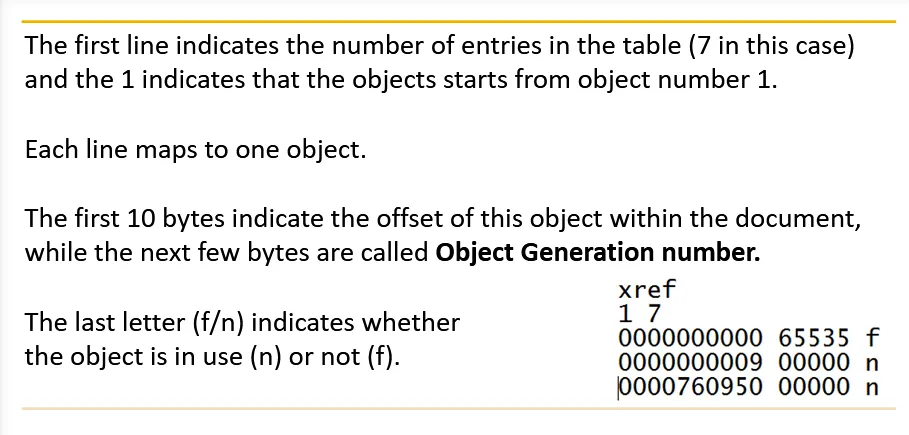
→ What is xref?
This is a table which is used to hold pointers that points to every object within the PDF document. The purpose of this table is to make it possible to access any object within the document without the need for going through the whole file.

→ Other important stuff such as Author and creation date can be found after the Author Tag.

Here author’s name is Beard Bro and the document was created using Microsoft Office.
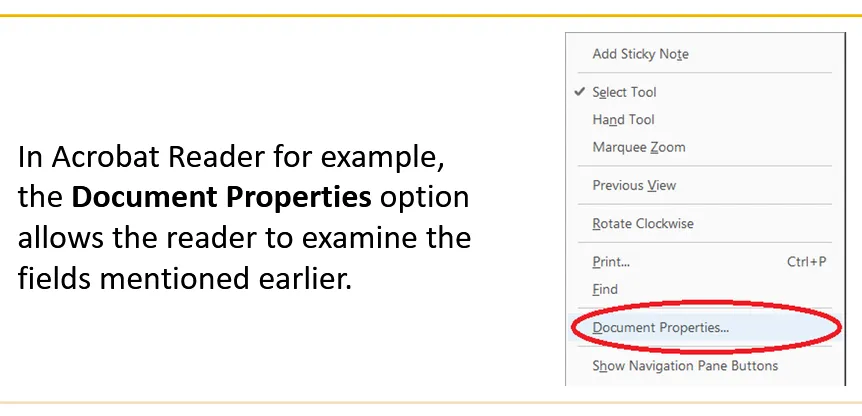
Exe Analysis:
Think of an executable file as a text file that contains instructions which the processor reads and executes. It is worth noting that executable files formats differs based on the operating system.
In Windows, executable files are usually called Portable Executables (or simply EXE)
On Linux, executables are called ELF(Executable Linkable Format) or Binary Files.
EXE files are usually produced by compilers. That is, write the code on a file in programming language (C, C++, C# or JAVA), then Compiles the exe.
The compiler takes the original code and translates it to machine code which the processor understands. The compiler will also add a header to the code before putting them together in the final EXE.
As executable file also has a header , it contain very useful metadata from an investigate perspective.
Exe files have headers, but their content also is divided and arranged into Sections. Sections are important as the headers when it comes to forensics investigation. The Sections field contains the names of section.
The Header contains following information:
→ Exports: The functions within that executable which other executables can call.
→ Imports:
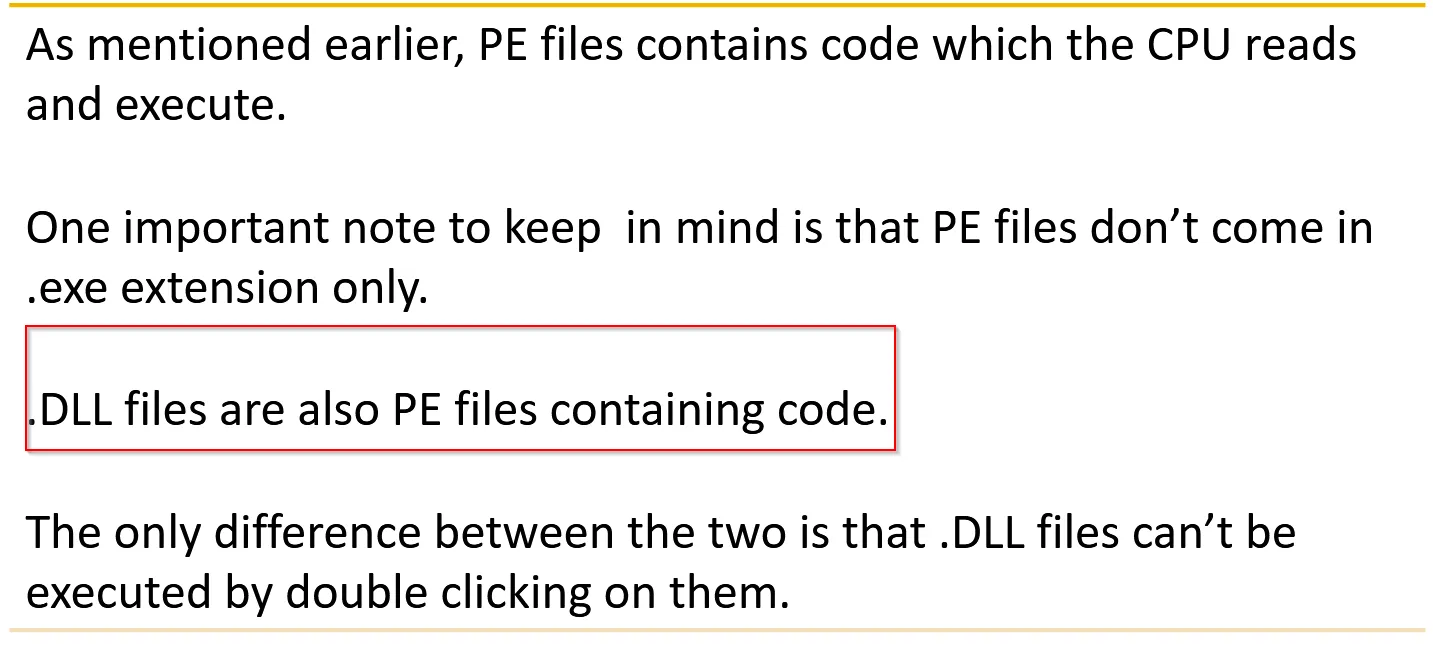
A programmer doesn’t has to write all the code from scratch; he/she can take a code built by others and “link” it to his code. Linking allows the programmer to call another code and get to execute within his/her application. This process is also called Importing. The .EXE file Imports code from another file (.DLL file).
We can think DLL file as a repository that contains data which any exe can import.
The process of allowing other programs to import and run a code from a .DLL file is called exporting.
In most cases, the .exe file will be importing code from .DLL file which is exporting the code to other EXEs.
Code within a DLL file is usually separated into segments which are typically called Functions.
When an EXE wants to import a code from a DLL file, it doesn't have to link the
whole DLL file into the EXE code. It can ask the DLL to export a function by its
name which makes the linking process more efficient.
In Windows environment, there is a System EXE file called rundll32 which takes a DLL file name and a function name; and executes them.
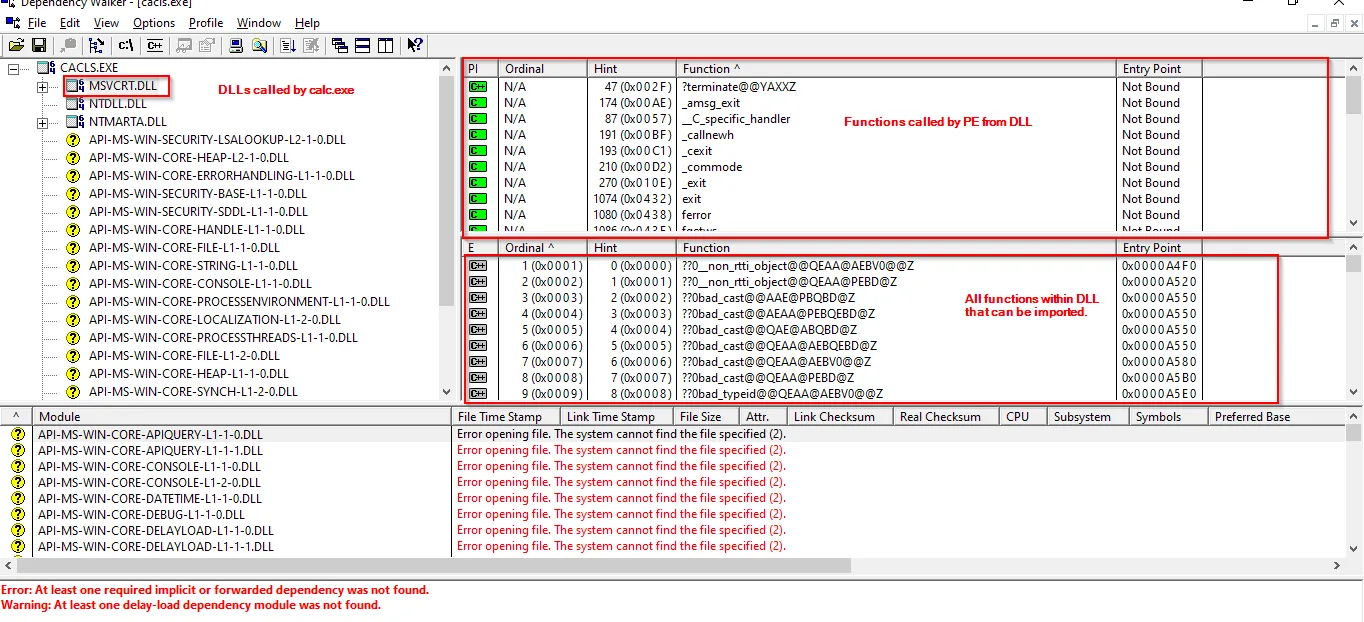
Within Import and Export fields, an investigator could file the names of the functions that this PE imports from other DLLs or exports to other EXEs.
To view the functions linked to the PE we can use a tool called Dependency Walker.
Another field which could be found within PE header is Time Stamp. It indicates when the program was compiled. [Malware authors manipulate the time stamp field in order to make things harder for the investigators and malware analysts.]
The Subsystem field tells whether there is a PE GUI application or command line application.
The Resources field contains the “resources” which the PE uses, such as: Strings, Icons, Menu etc.
As other file format has a header and one block body, PE files’ body is divided into segments. Each segment holds a different type of data and/or code. The segments are: text, rdata, data, rsrc, reloc.
→ The text segment holds the PE executable code. It is where the CPU reads the instruction from and executes. When reverse engineering an application, this is the most interesting segment to look at.
→ The rdata segment holds information about the imported and exported code. There may be a case where these import and export information are stored separately. The import information would be stored in idata section and export in edata section.
→ The .rsrc section includes external resources that are used by the PE. Resources includes: Strings, Icons, Menus etc. (Already mentioned above 😀). This section is where most of the work happens when translating an application or adding another language to it.
→ In some x64 bit applications, there is .pdata section which contains the exception handling information.
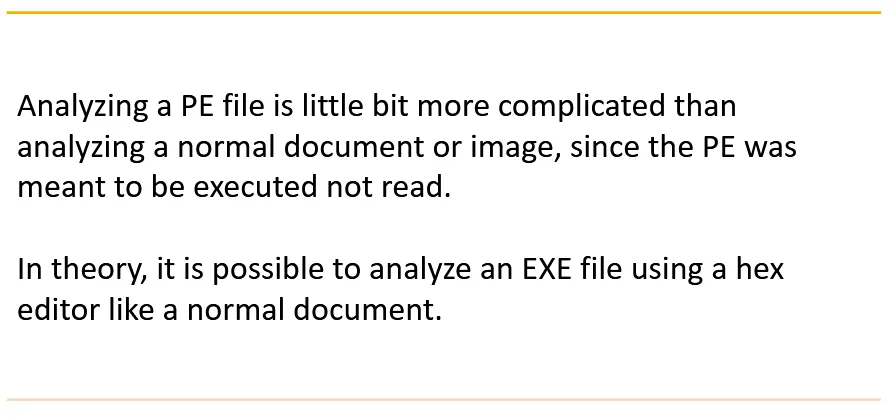
Using hexedit for calc.exe file

But due to complexity we cannot rely on hex editors.
In general there are two main techniques:
1. Static Analysis
→ It involves analyzing the EXE without running it.
→ It includes analyzing the PE headers (Basic Static Analysis) or reverse engineer the content/code of the EXE and view the assembly code or the CPU language. (Advanced Static Analysis).
2. Dynamic Analysis
→ It involves either running the PE within a contained environment (Virtual Machines) and monitor its behavior using same tool (Basic Analysis) or running the PE code step by step within a debugger and monitor its behavior (Advanced Analysis)
[We here will perform only Static Analysis]
Peview is a great tool to view the PE header and sections within the PE file in a convenient way. Some sections and header within the PE file like IMAGE_DOS_HEADER and MS-DOS Stub Program are legacy and not used anymore.
→ It can be downloaded: https://github.com/dwfault/PEView/blob/master/PEviewPatched.exe(patched)
Let’s look at the Audacity (exe) file using Peview
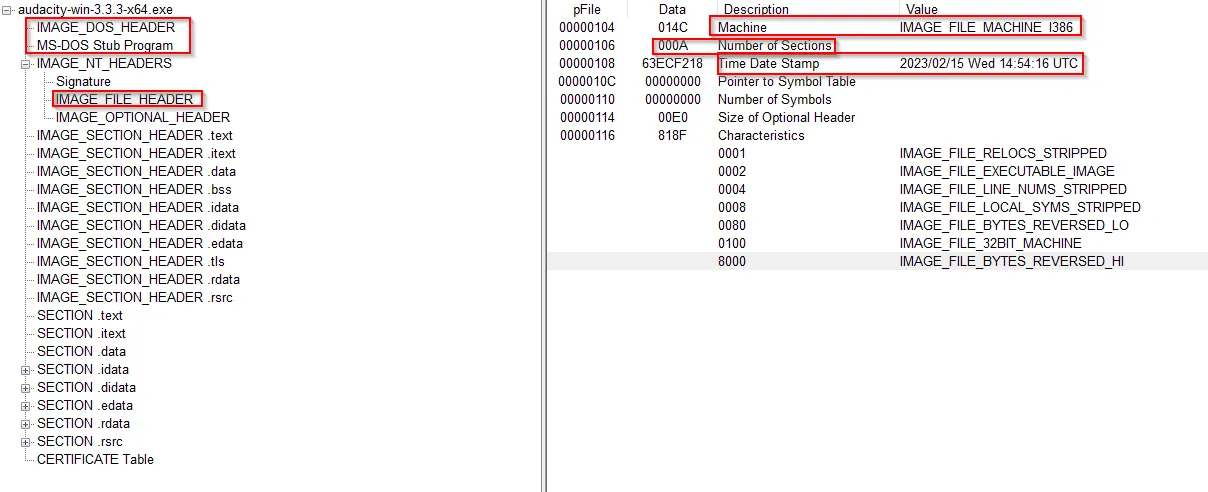
→ The IMAGE_FILE_HEADER entry contains information about the PE itself.
→ The Machine field indicates the architecture of machine which this binary was compiled on.
→ The Number of Section indicates the number of sections within the PE.
→ The Time Date Stamp tells when PE was first compiled.
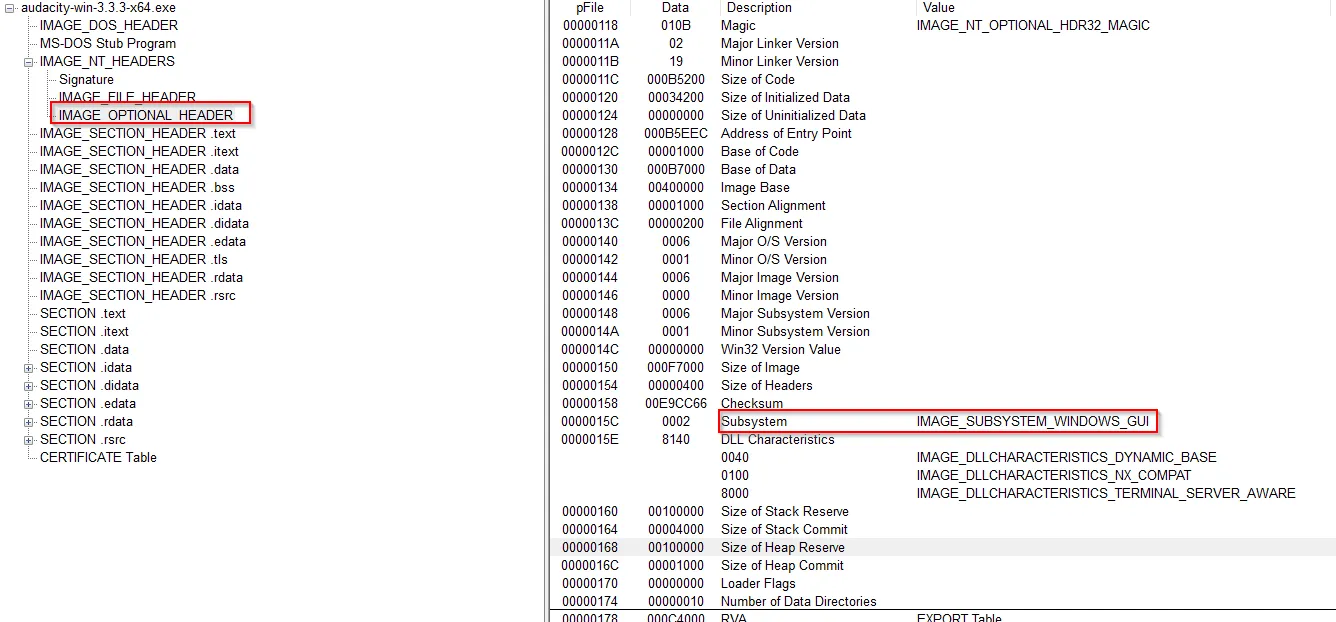
→ The IMAGE_OPTIONAL_HEADER also contains very useful pieces of information.
→ The Subsystem (Read earlier) tells whether it is GUI or CLI application.
Further, let’s explore IMAGE_SECTION_HEADER for the same .exe file
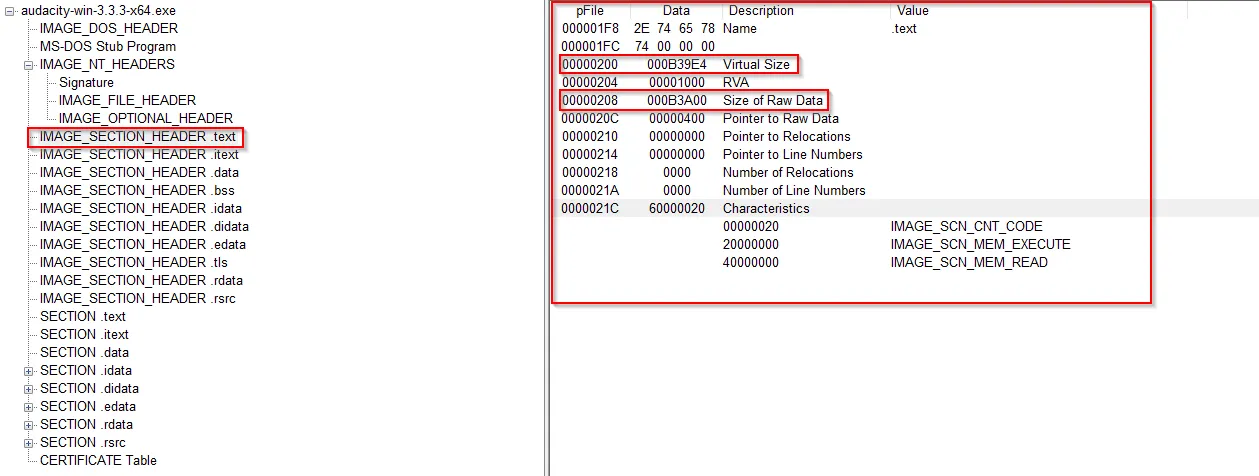
The IMAGE_SECTION_HEADER describes various sections and data contained within these fields mostly describes those sections in terms of Memory location.
→ The Virtual Size describes how much space the section needs when the PE is loaded into the memory.
→ The RAW DATA section describes the space needed on the main disk.
Normally, these two values should be equal or very close. If there is large difference, it suggest that the code has been packed, especially if the size of .text section in memory is much larger than the size on disk. ( It means if Virtual Size > RAW DATA)
It’s better not to examine .rsrc section with Peview. Instead we can use another tool called Resource Hacker.
Most of the translation and language addition process is usually done using Resource Hacker.
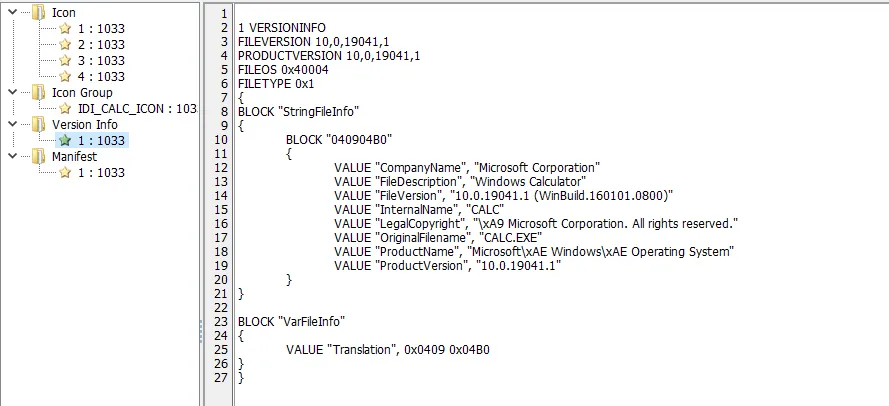
If the analysis tool (Resource Hacker) showed very little output (no strings, no imported functions, no exported function), it means the EXE is probably packed with Packer.
Packing is a technique used by malware authors to make the life of malware analysts harder.
List of Discussed Tools:
→ Directory Snoop -> examine MFT records and other system related files
→ DiskExplorer For NTFS -> Examine NTSF attribute
→ Hexeditor -> Checking Headers and Trailer of a file
→ Sleuth Kit -> Tool to gather the metadata for all the files that falls within search category, list and analyze them
→ OpenKM -> System that can manage and organize various types of files through web interface.
→ ADS (Alternate Data Stream) -> Hiding data
→ Dependency Walker -> To view the functions link to PE
→ Peview -> To view PE header and sections
→ Resource Hacker -> Examine .rsrc section for PE