Notiz
FTK-Imager
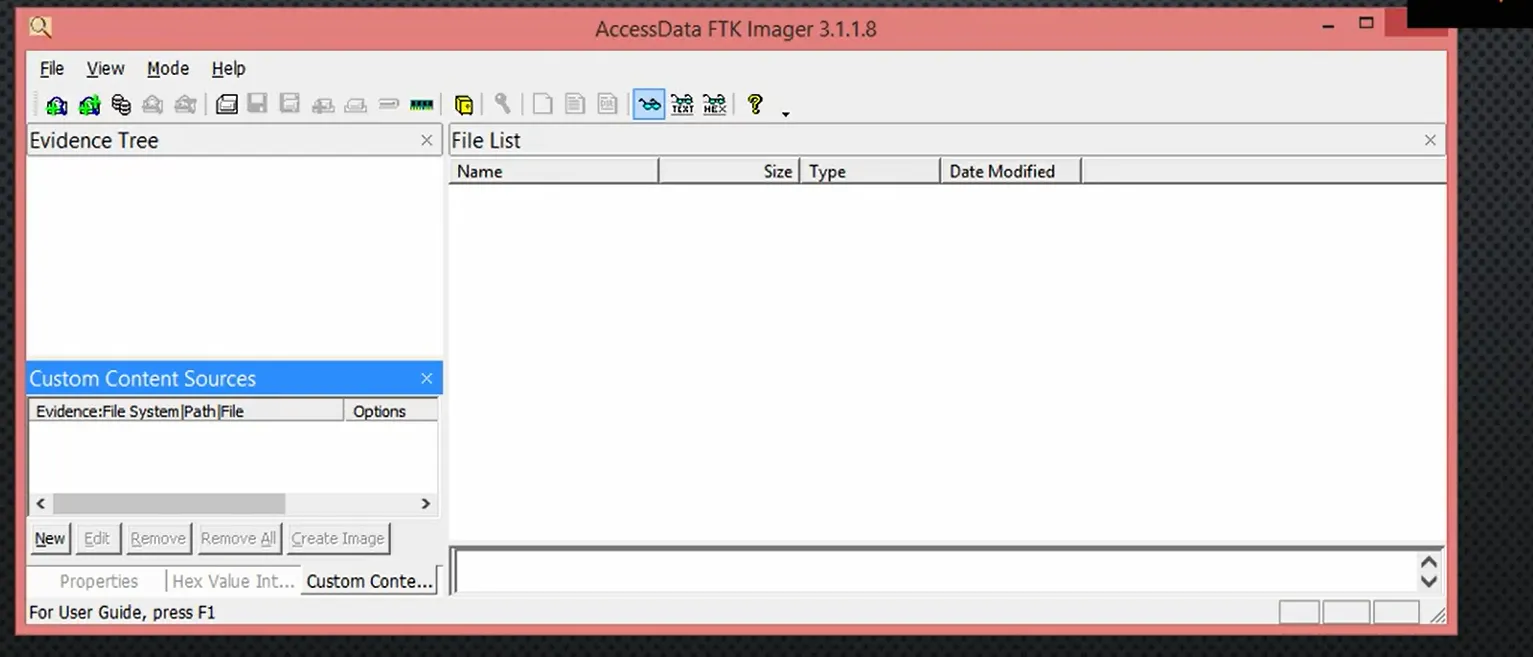
Let's properly capture the image before analyzing it
Creating a Forensic Image Using FTK Imager
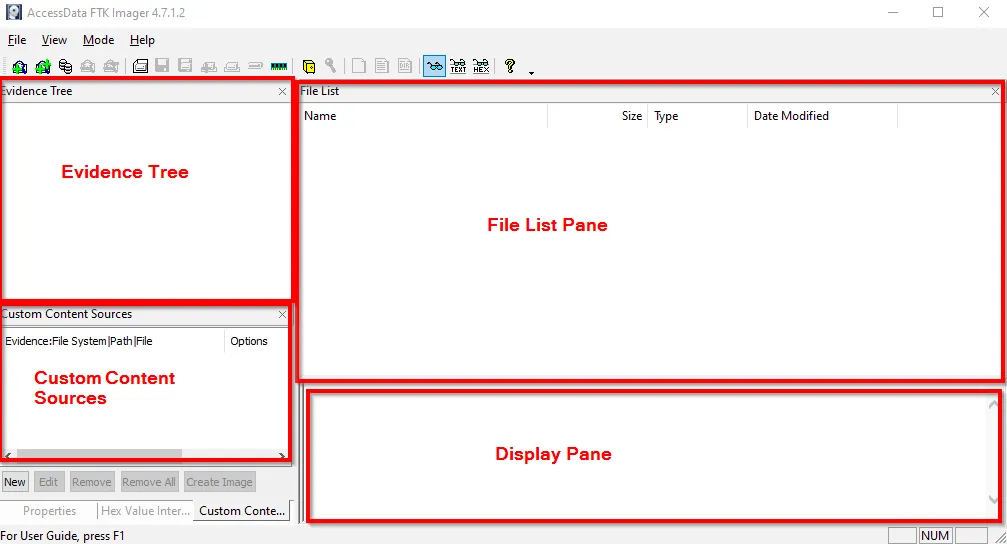
Let’s first view the volume details within each disks from Computer Management > Disk Management
Now to create a disk image using FTK Imager, goto File > Disk Manage, further select the Source accordingly.

Creating Forensics Image for specific directory:
Choose Disk Image > Contents of a Folder > Select Image Source > Image Destination (When contents of Folder is selected as source type, it includes only Logical Files)
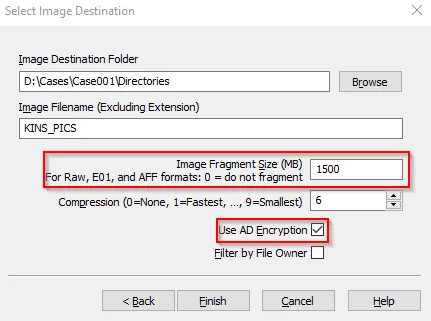
(Note: The AD Encryption is used to Protect Sensitive Data)
Further Password prompt dialog box appears, and configure it.
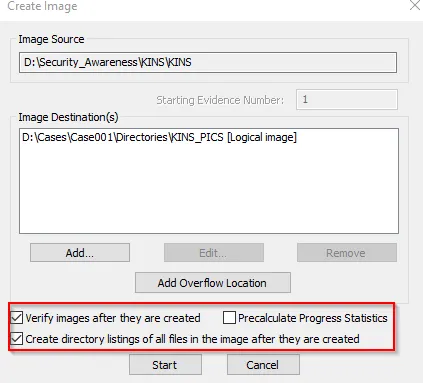
Our image is created successfully
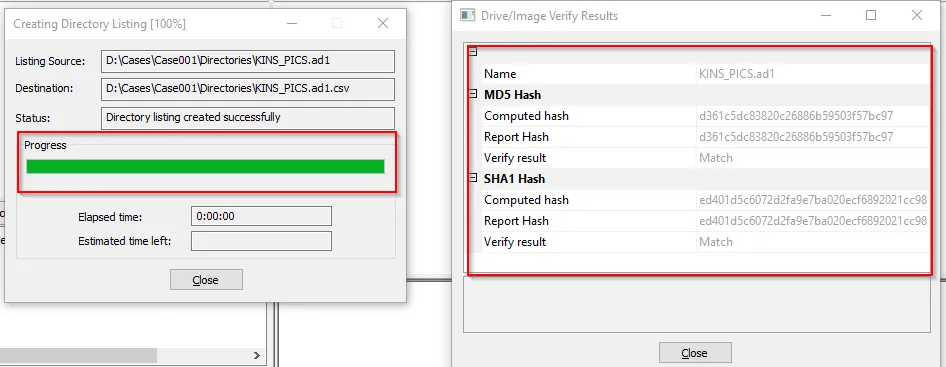
To view our image:

Mounting a Forensics Image using other tools:
-
Arsenal Image Mounter:
-
OSFMount
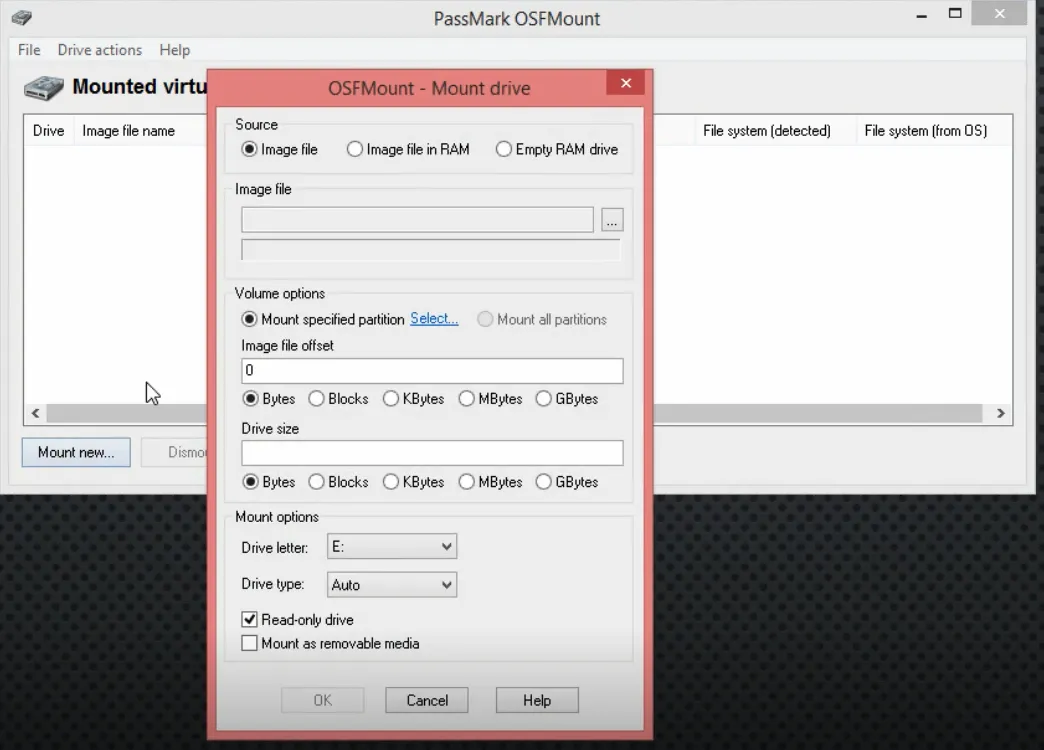
Calculating Files Hashes Using HashCalc
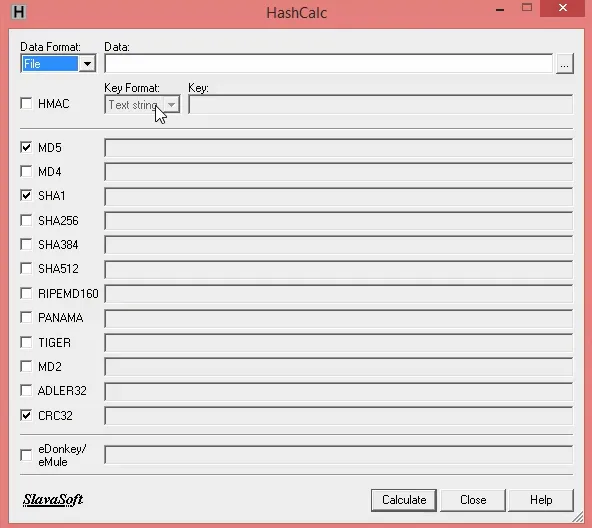
Now select any file and drag it to the hashcalc and it will generate required hashes