Malware Analysis
Malware Analysis HomeLab
-
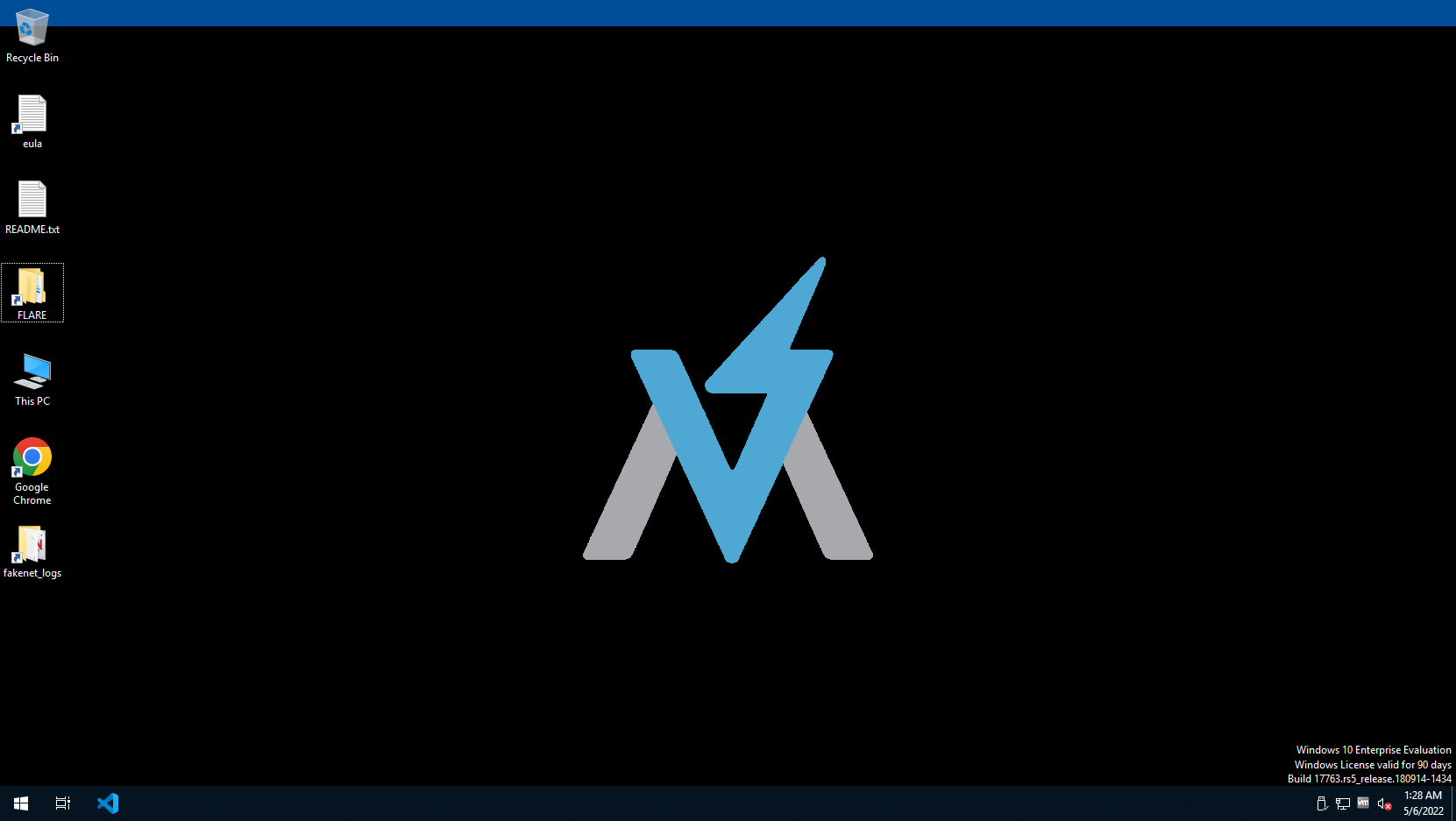
We first require a virtual machine where two lab; one Windows and another Linux, machine will be installed. Windows 10 machine can be downloaded from the link Windows 10 Enterprise.
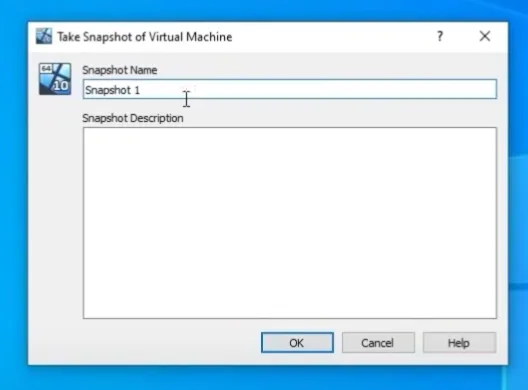
After deploying the fresh windows 10, within the virtual machine take a snapshot of this new image.
-
For the Linux distro, we will use an OS called REMnux. An image for VM is available within the link REMnux: A Linux Toolkit for Malware Analysts.
Now run the Linux machine and enter below command if full screen is not supported:
  sudo mkdir /media/cdrom
  sudo mount /dev/cdrom/ /media/cdrom
  cd /media/cdrom
  sudo -s
  ./autorun.sh
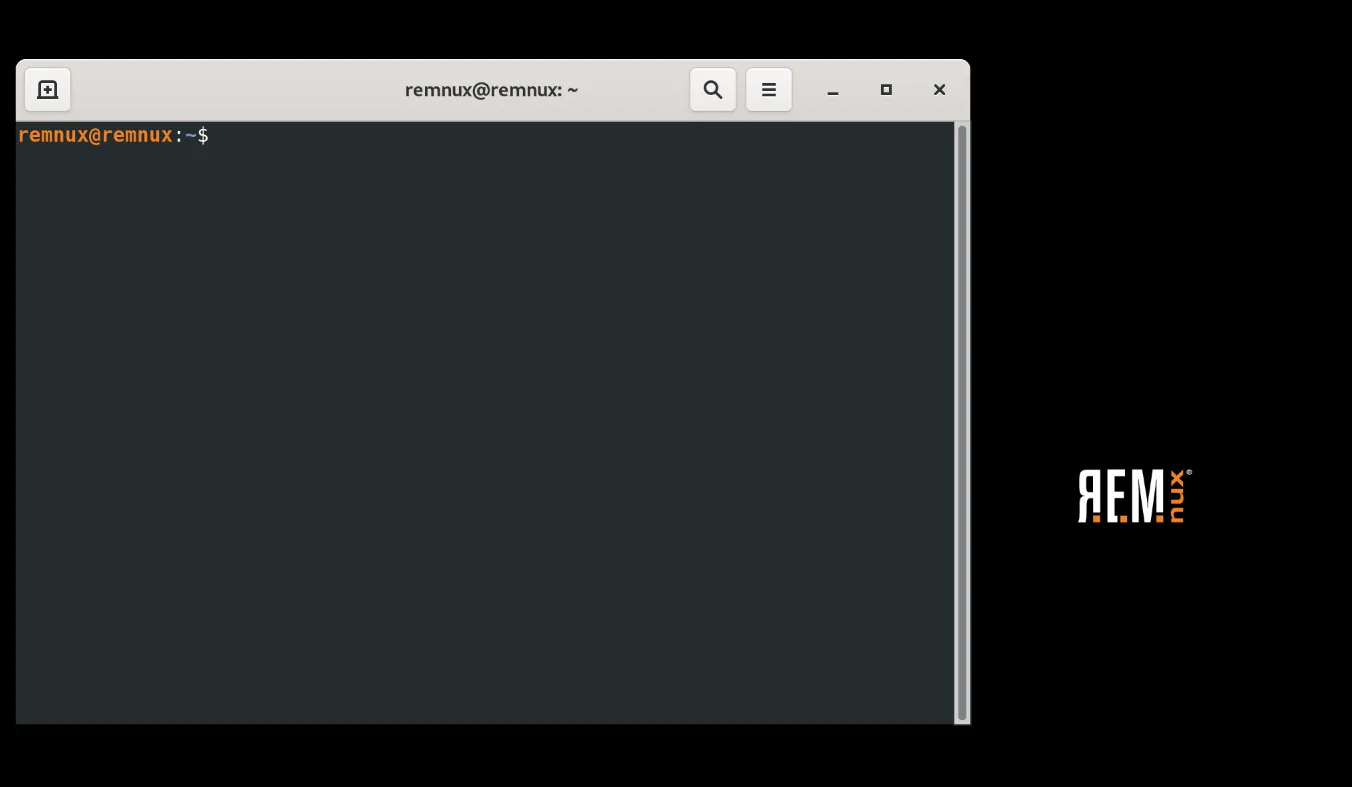
This will install the requirements and support a full screen mode with require tools. Take a snapshot for this machine. The machine look like:
-
Now for windows, we need to install tools require for the installation. Click the Link
Just follow the requirements shown within README.md file. If anything go wrong then we can start again via snapshot file. This can be done as:
1. Open PowerShell Administrator
2. Install a .ps1 install file as:
wget https://github.com/fireeye/flare-vm/raw/master/install.ps1 -UseBasicParsing -Outfile C:\Users\<username>\Desktop\install.ps13. Now go-to actual ps1 file and install as:
./install.ps1This will take a very long time. After completion enter your credentials and reboot your system. Now your machine will be visible like:

Now take the snapshot of this machine because this is the important snapshot we are making right now.
Setting Up A Network
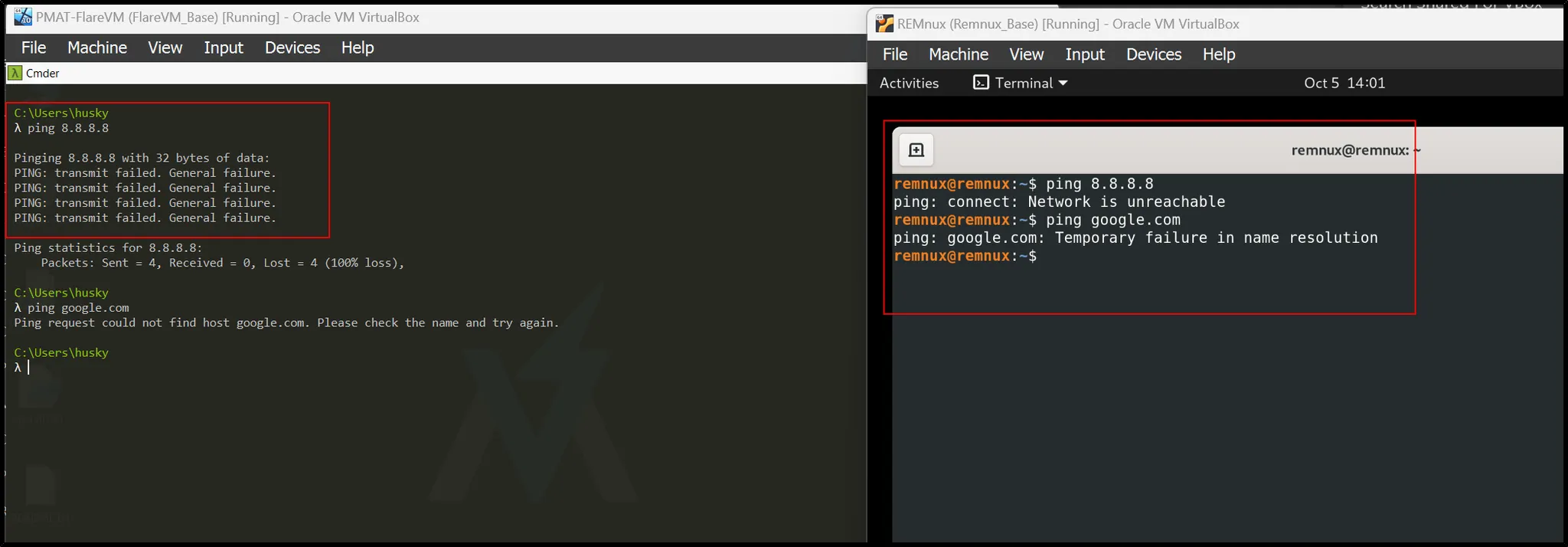
This is a pivotal part of making a lab. We will create our own network in such a way that both the machines will not be connected to internet, but will be able to communicate with each other :(Windows and Remnux) VM machines.
-
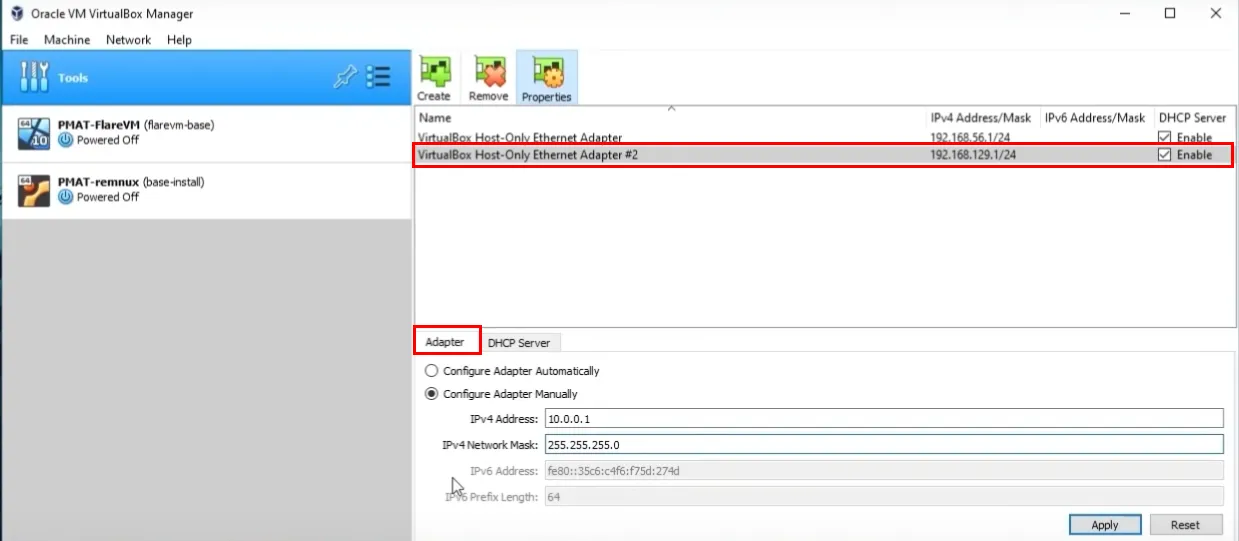
We create a new Adapter with the configuration as:
-
Now the DHCP configuration:
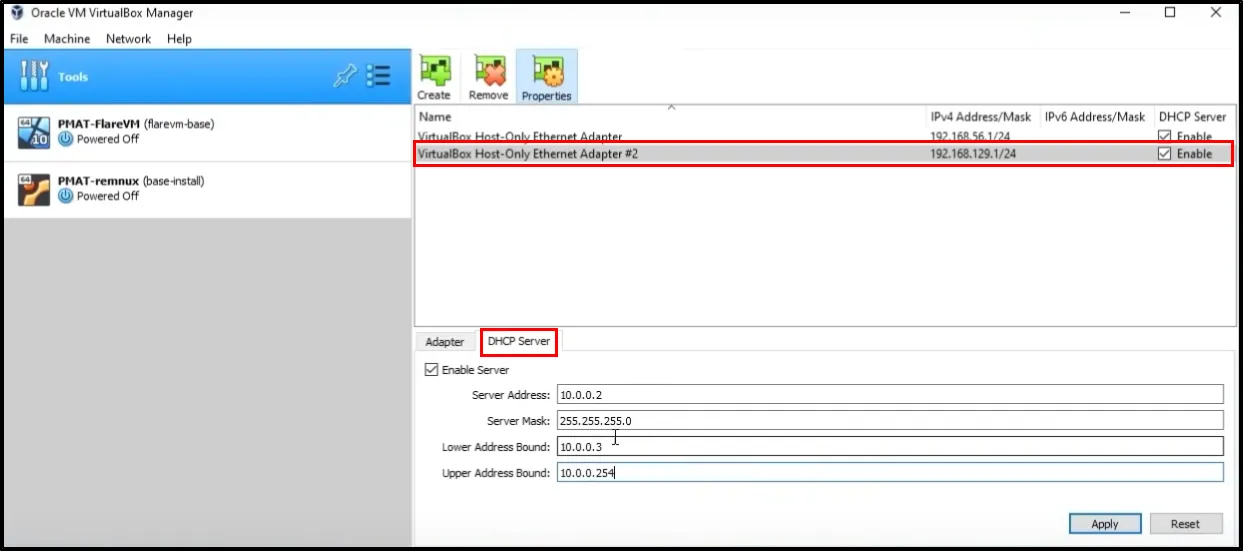
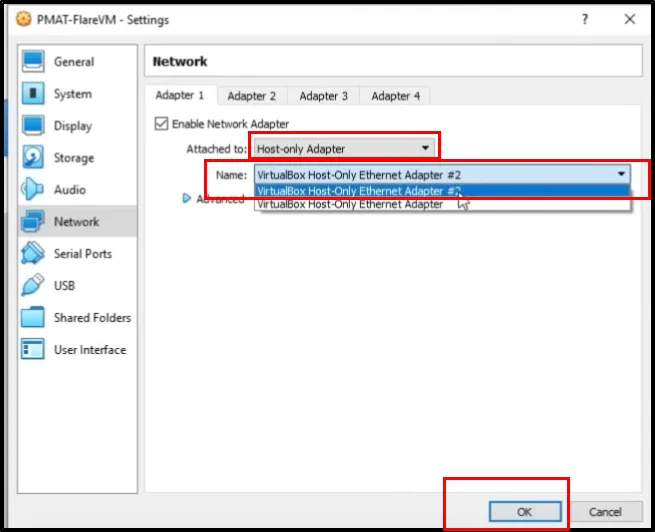
Just apply the changes and change your “Network” settings with Host-Only Adapter, and the Name of the adapter will be VirtualBox Host-Only Ethernet Adapter #2
-
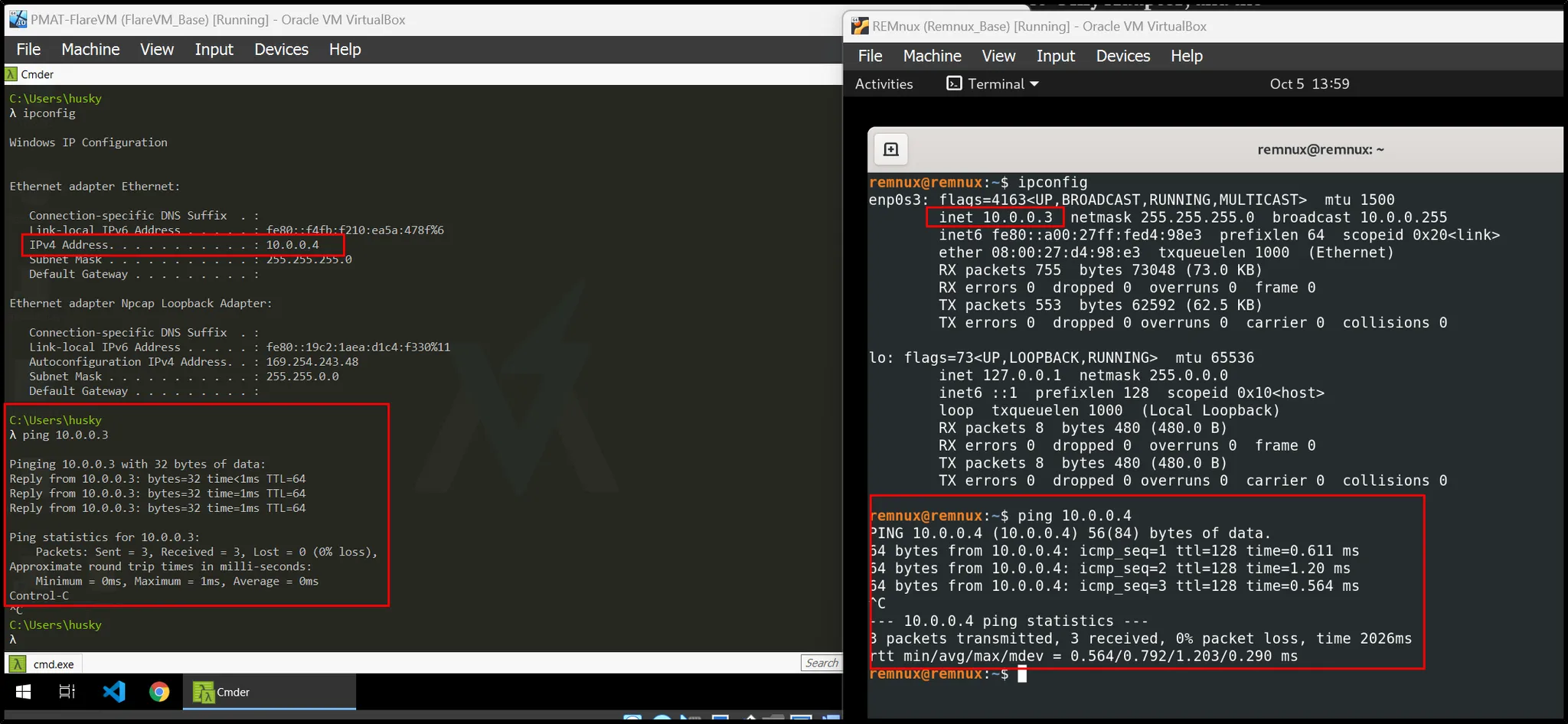
Set the same setting for both the machines. Furthermore, we can check the connection from those machines as:
They are able to communicate with each other:
Furthermore, checking their outside connection :
Setting our Fake Internet:
What we need to understand is, when malware is executed within Windows machine, Another machine (Remnux) will act as Network Simulator (After it is programmed) called Inet Simulator. The main use is to respond to any outbound connection malware is gonna make.
And importantly, this machine (REMnux) will act as Network Analysis platform too for studying network at protocol level . So the Windows host will act as Host Based Indicators and Linux as Network Based Indicators.
-
Let’s setup an internet simulator to fake the internet which is called inetsim: But before that, we need to change some configuration at:
sudo vim /etc/inetsim/inetsim.confNow remove the comment and change some of the contents like:
start_service dns service_bind_address 0.0.0.0 dns_default_ip <ip_of_remnux> -
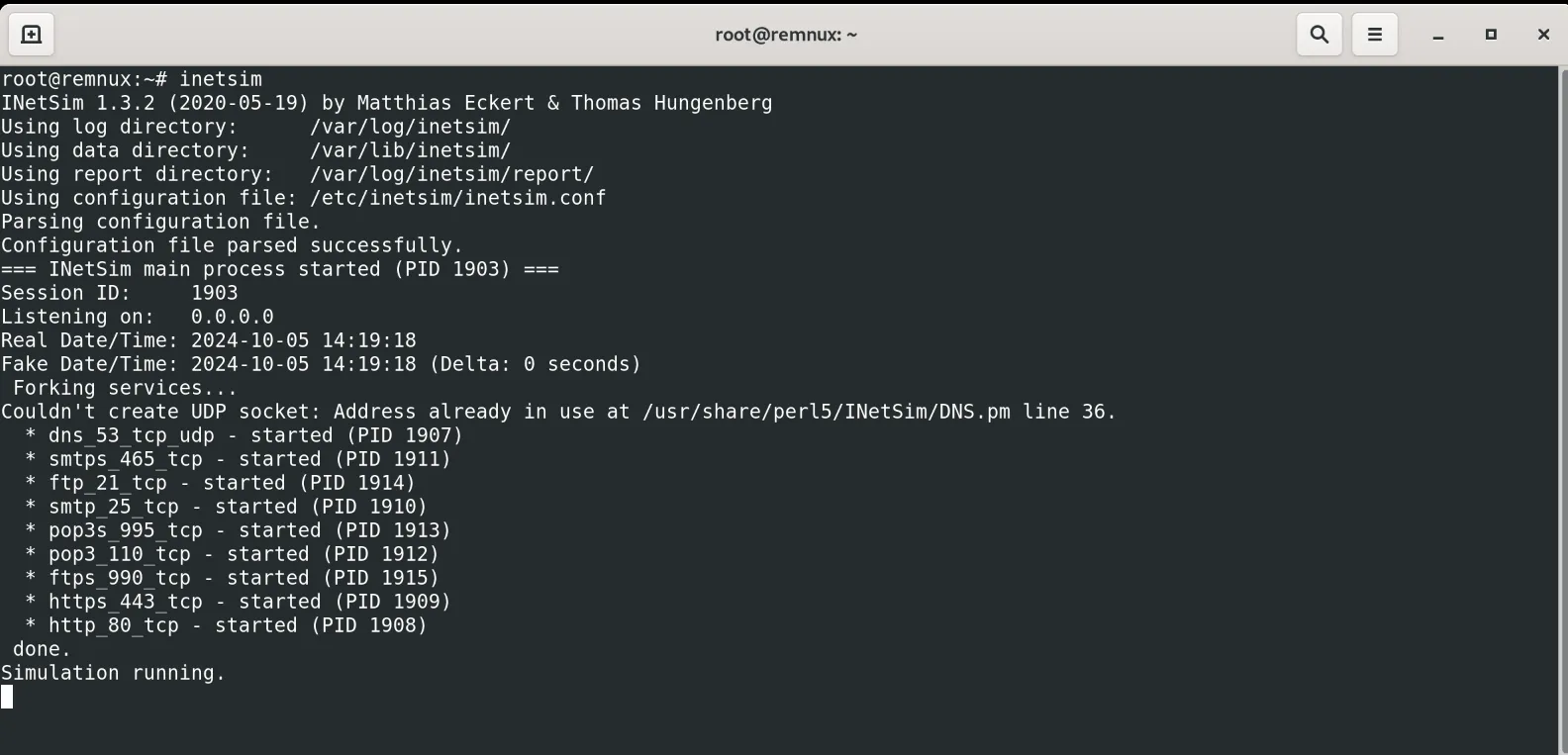
Now run the simulator as:
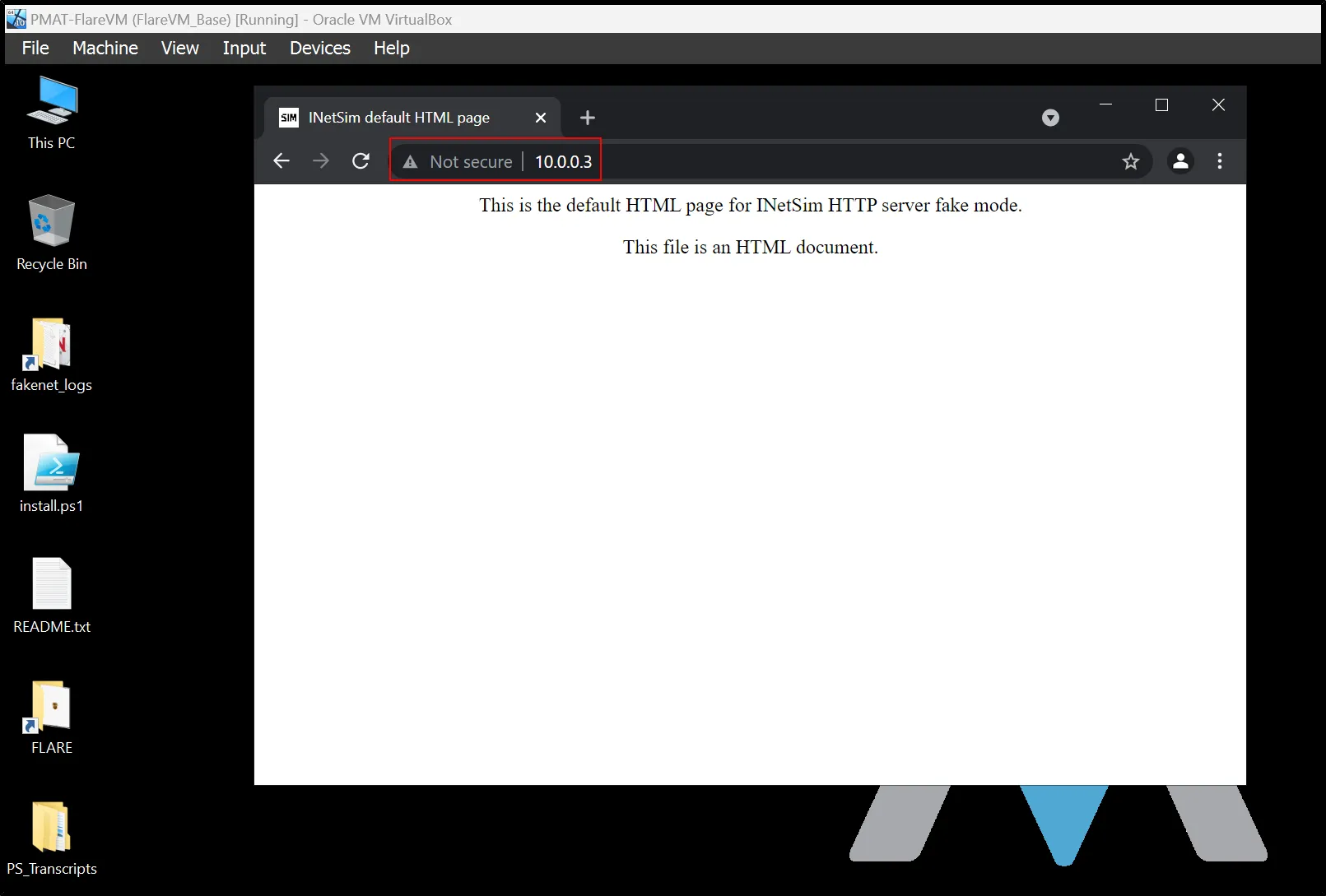
Now, the most interesting part is, when we access the IP within the windows machine we get a fake server page serve by the previous simulator.
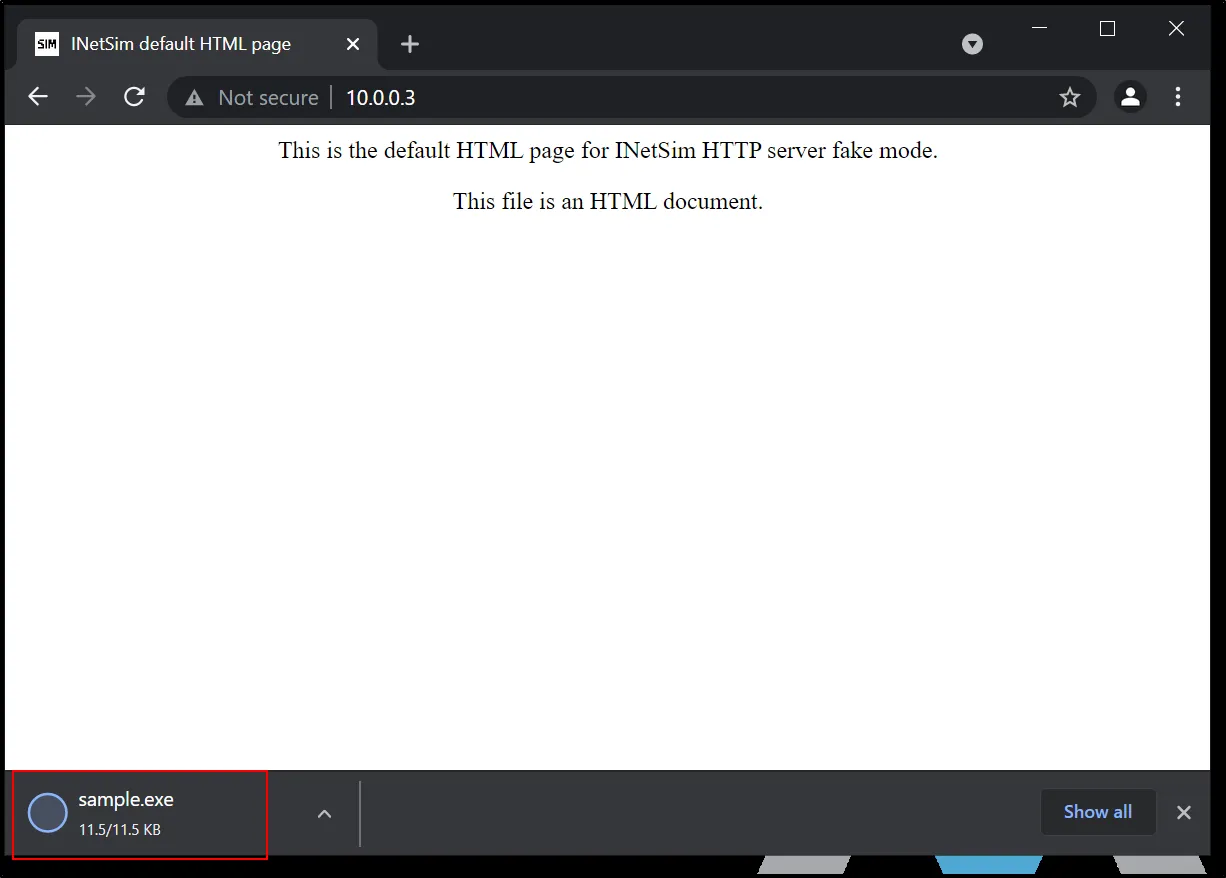
And anything you type after the IP, that will eventually get downloaded. For eg:
When we execute that file:
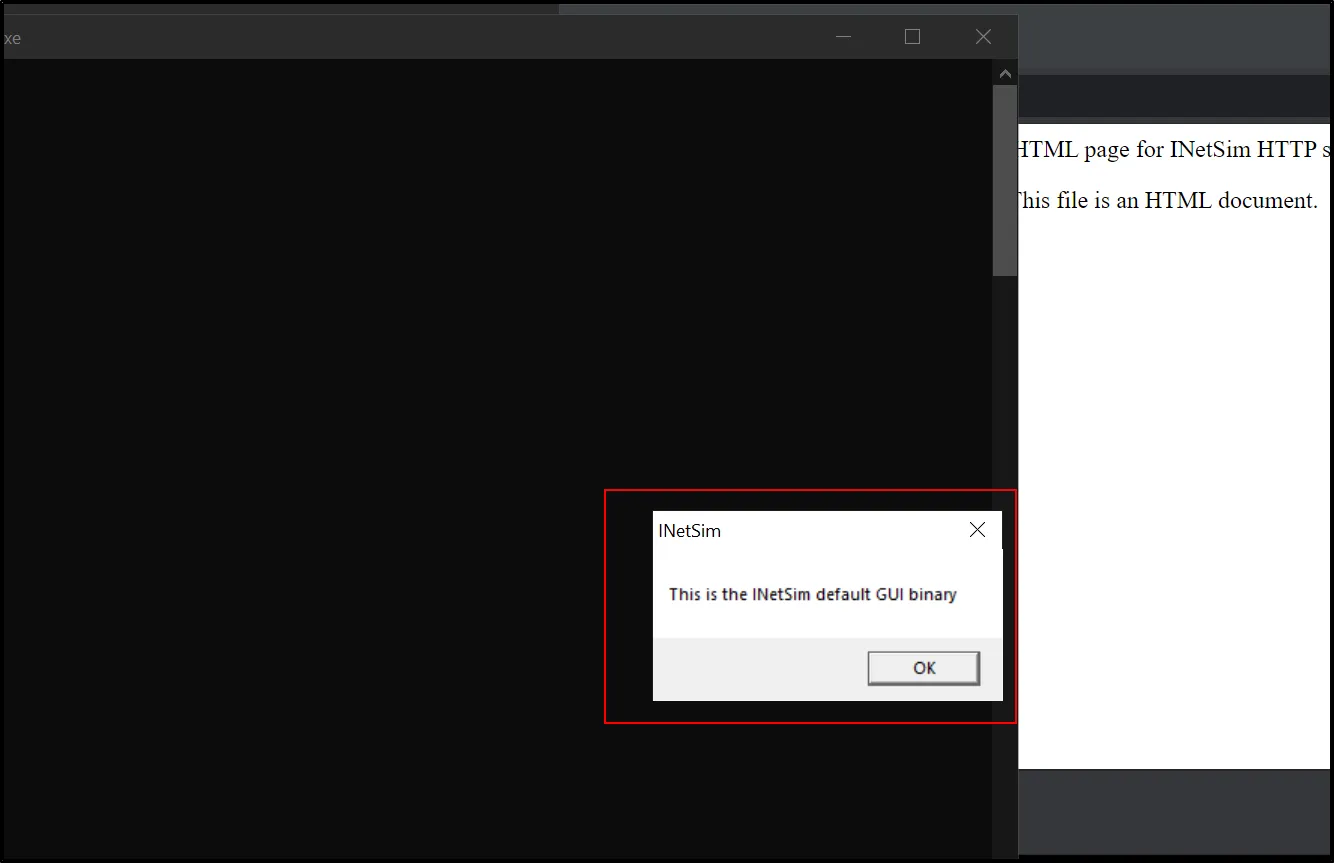
It is important when malware download any harmful files or second payload within the host machine.
-
Let’s create an option where for every executed domain redirected to the simulator page so that we could know any searched domain and download of payload.
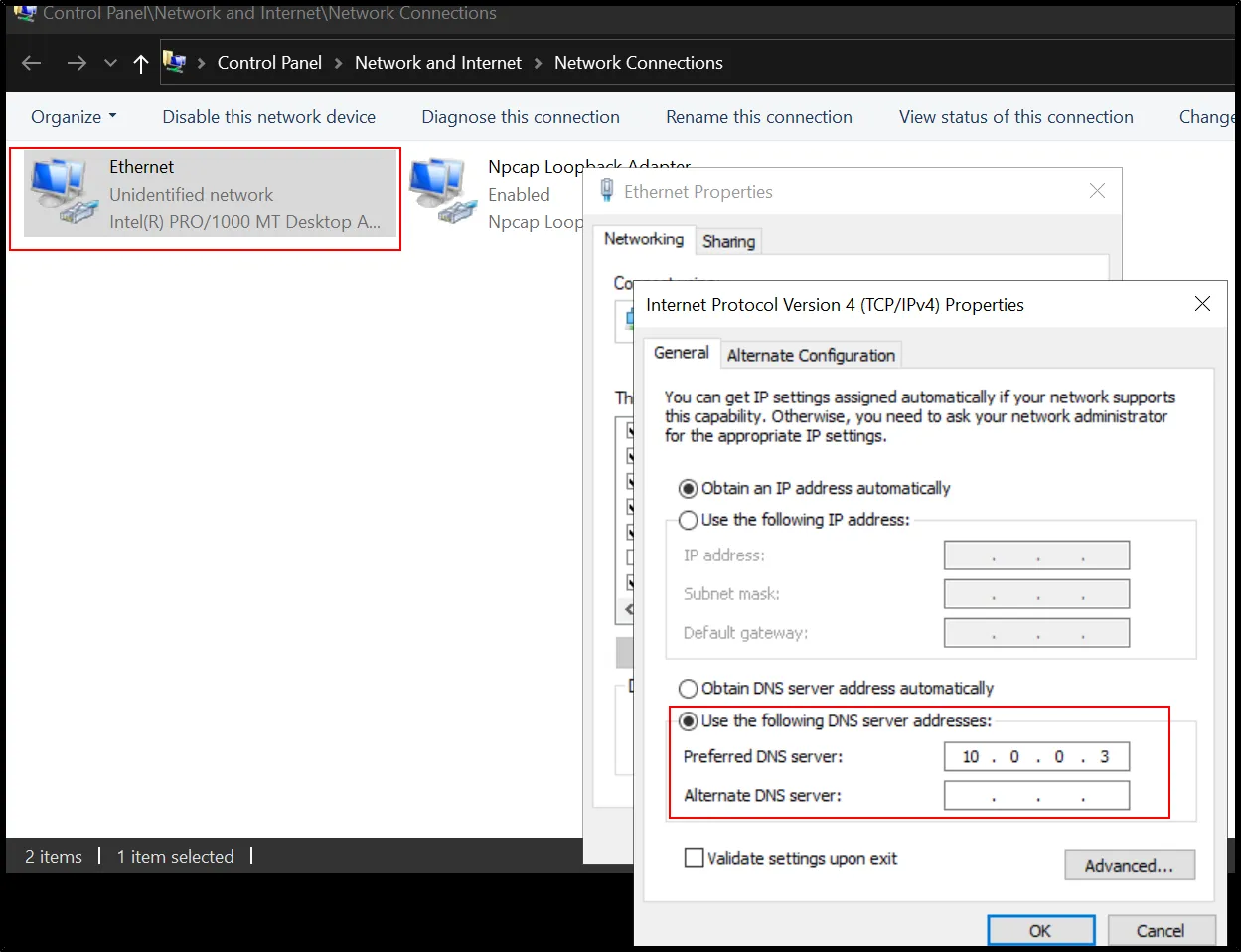
So any searched domain will redirect to that simulator provided fake web page and download all the contents that’s requested by the malware running in a host machine. And it is very important for forensic point of view.
And now, for every searched domain, the webpage will redirect to the simulator webpage i.e:
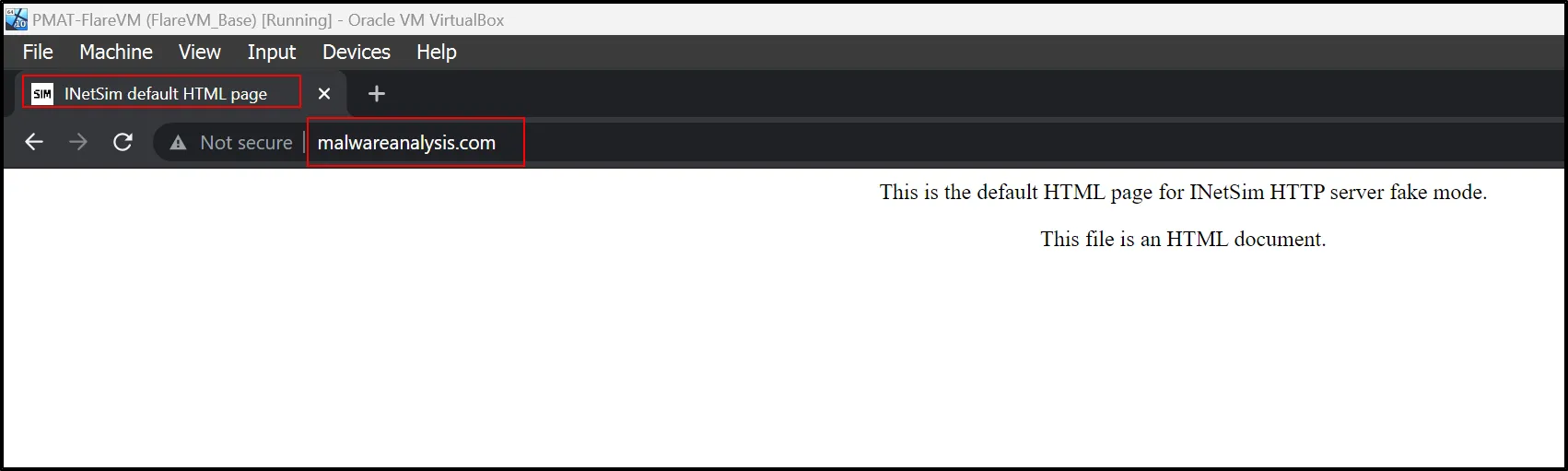
Now further we can make a perfect analysis for the malware using this setup.