
Let’s get dive into the questions:
- What is the full AWS CLI command used to configure credentials?
- Looking at the documentation of AWS-CLI , I make sure that we can easily get the answer for this question correctly
—> aws configure
We have the required credentials from the task and after unzipping the given file we can easily configure our aws so that further we can access the AWS-cli.
- What is the ‘creation’ date of the bucket ‘flaws2-logs’?
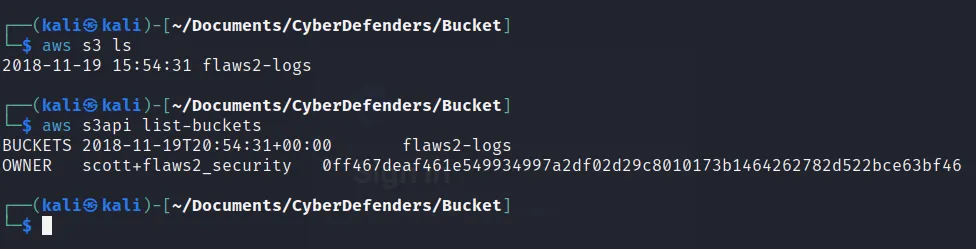
- For accessing the bucket s3 we have the command ,
—> aws s3 ls
But it gives the bucket with the creation date according to the “Global” date and time but we are asked to solve with the UTC time module so,
—> aws s3api list-buckets
- What is the name of the first generated event -according to time?
- When we view on the S3 bucket from the browser as we get the log file.
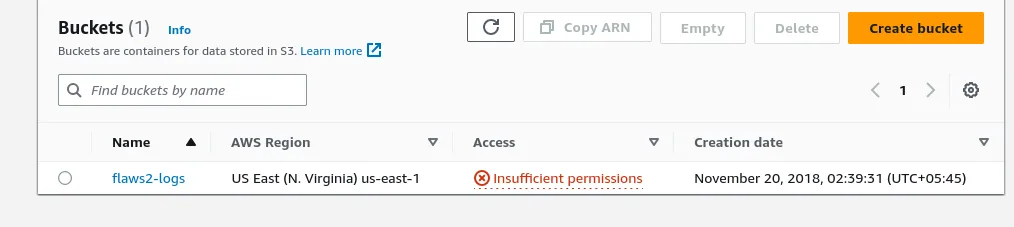
Now we need to access these logs files from AWS-cli so, we need to extract all those logs on our own terminal. We have a “sync” command to extract those logs file from bucket as:
—> aws s3 sync s3://flaws2-logs
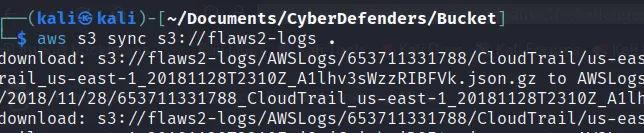
And now we get the “AWSLogs” folder on current directory. Further gaining those files according to the created date we can use the “find” command. But before that when we view those files under the directory, the files seems to be zipped so for that we also need to unzip them.
→ find AwsLogs -type f -exec gunzip “{ ” \; 
These files are on json format. So we need a special command “jq” which is used to execute the json format file.
→ find AwsLogs -type f -exec jq . “{}” \; grep “eventTime” To filter the output on sorted order and find only the unique output we can do :
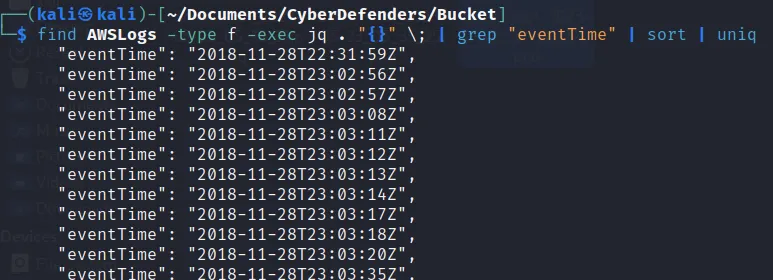
Here we the the eventTime of a log file. Now based on the created time we can easily find the first generated event using “grep” command as:
→ grep -r -F ‘“eventTime”: “2018-11-28T22:31:59Z”’ AWSLogs
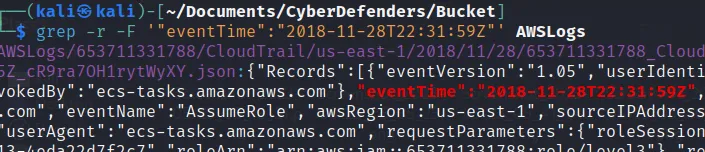
See, we got the eventName:
→ AssumeRole
- What source IP address generated the event dated 2018-11-28 at 23:03:20 UTC?
- I just used the grep command to search for date and look out for the IP address on that generated output.

Here we get the log file and further using this json file we can get the IP address as:

→ 34.234.236.212
- Which IP address does not belong to Amazon AWS infrastructure?
- Similarly like above command we get another IP address too. So when we look into the IP we get:
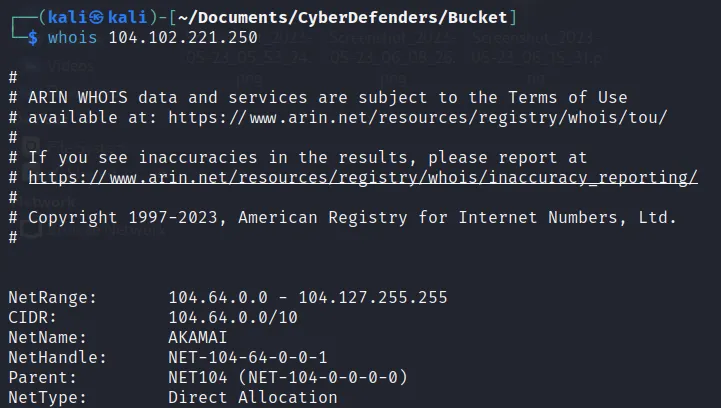
Hence, it does not show any AWS infrastructure.
→104.102.221.250
- Which user issued the ‘ListBuckets’ request?
- For this question I used a simple python script.
 import sys
 import os
 import subprocess

 search_text = 'ListBuckets'
 dir_path = "/home/kali/Documents/CyberDefenders/Bucket/AWSLogs/653711331788/CloudTrail/us-east-1/2018/11/28/"
 dir_list = os.listdir(dir_path)

 for i in dir_list:
         file_path = os.path.join(dir_path, i)

         try:
                 output = subprocess.check_output(['jq', '.', file_path], stderr=subprocess.DEVNULL)
                 output = output.decode('utf-8')
         except subprocess.CalledProcessError:
                 continue

         if search_text in output:
                 #print("File is {}".format(i))
                 os.system('jq . {}'.format(os.path.join(dir_path,i)))
Now just run the python file and get the output
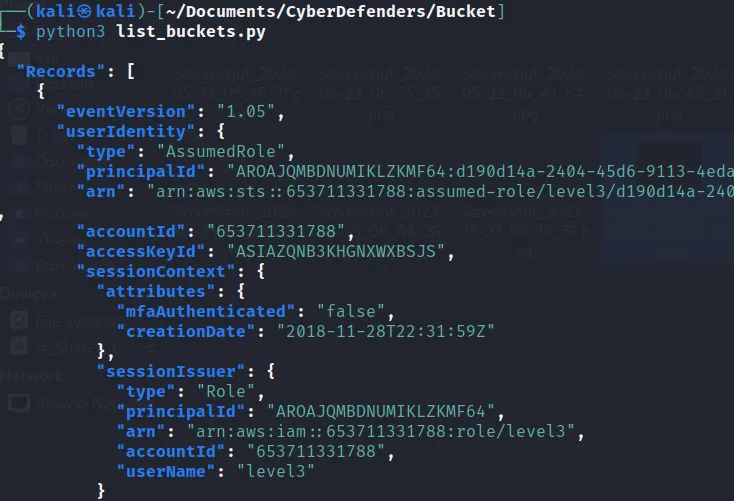
There’s the userName:
→ level3
- What was the first request issued by the user ‘level1’?
- I simply search for the log file with “level1” filter and then sort the list. We get the list of json files along with the created date and time. Further we can view those event as:
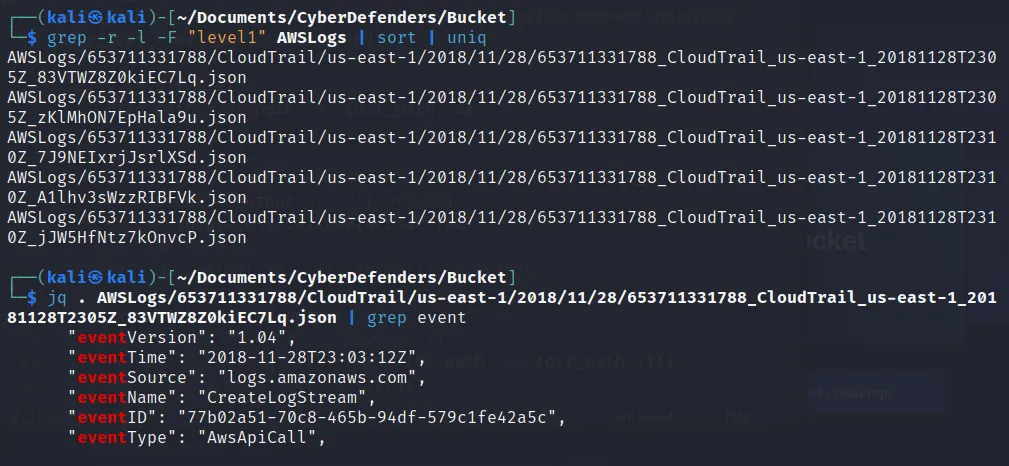
We finally get the first created event
→CreateLogStream